









Self-Tested Mode: Independent Practice for Students

Overview of Self-Tested Mode
Self-tested mode allows students to practice independently on their devices, mastering topics at their own pace.
This feature transforms interactive worksheets into personalized study sessions with auto-scoring and motivational feedback, helping students improve their skills with minimal guidance.
How to Access Self-Tested Mode
Students can start a self-paced practice session in two ways:
Option 1: From a Worksheet
- Choose any interactive worksheet and click the “Self-tested” button to start a self-paced session.
Option 2: After an Assignment
- Once a homework assignment is submitted, students can click “Self-paced” under the congratulations card to turn that assignment into a personal practice round.
Customizing the Practice Session
Before starting, students can tailor their practice experience by adjusting several settings:
- Question Count: Limit the number of questions they want to review from the original set.
- Timer Settings: Choose to practice with a countdown/count-up timer or disable the timer to eliminate time pressure.
- Format Conversion: For quizzes, the AI can convert multiple-choice questions into Matching or True/False formats for a fresh challenge.
- Instant Feedback:
- Enabled: Students see correct answers and explanations immediately after each question.
- Disabled: Students can revisit and change answers until they click submit.
The Independent Practice Experience
The self-tested interface is designed for focused, independent work:
Navigation and Shortcuts
- Question List: Students can jump between questions or view the “Answer Sheet” to get a complete overview before completing the session.
- Keyboard Shortcuts: In quiz mode, students can use keys (1, 2, 3, or 4) to select answers quickly without a mouse.
Interactive Tasks
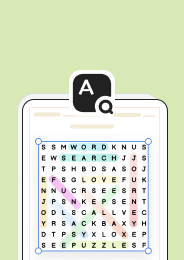
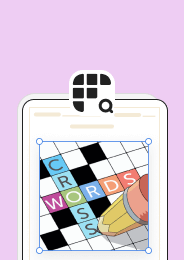
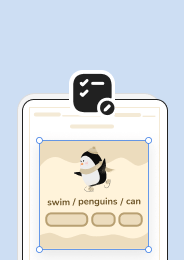
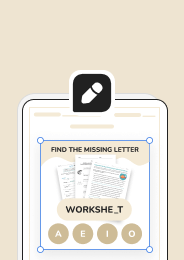
For non-quiz activities like word searches or crosswords, students interact with the digital worksheet by clicking, dragging, or typing directly onto the interface.
Reviewing and Sharing Results
Once the self-tested session is completed, students receive a detailed summary:
Auto-Grading and Leaderboards
- Instant Results: The system automatically grades responses and shows correct versus incorrect answers.
- Leaderboards: Students can view their ranking against others who practiced the same material to stay motivated.
Sharing Results
- Send Results to Teacher: Students can click the “Send result to teacher” button to share their progress and request feedback via email.
Continuous Learning
If multiple attempts are allowed, students can click the “Reattempt” button to retry, with AI-generated suggestions for similar worksheets at the bottom of the page.
Was this article helpful?
Your feedback helps us improve our guides.