




Doing homework online doesn’t have to be complicated. With Worksheetzone, you can complete and submit assignments in just a few easy steps. The platform is designed to keep things simple for students while helping teachers manage the classroom and personalize learning. In this guide, you’ll learn exactly how to open your assignment, answer questions, and turn in your work with confidence. By the end, you’ll see how easy it is to stay on track, meet deadlines, and get instant feedback—all in one place.
Open Your Assignment
You can join an assignment in three simple ways. Use whichever your teacher shares:
- Link: Your teacher will give you a link. Simply tap or click it, and you’ll be taken straight to the assignment.
- QR code: Scan the code with your device’s camera.
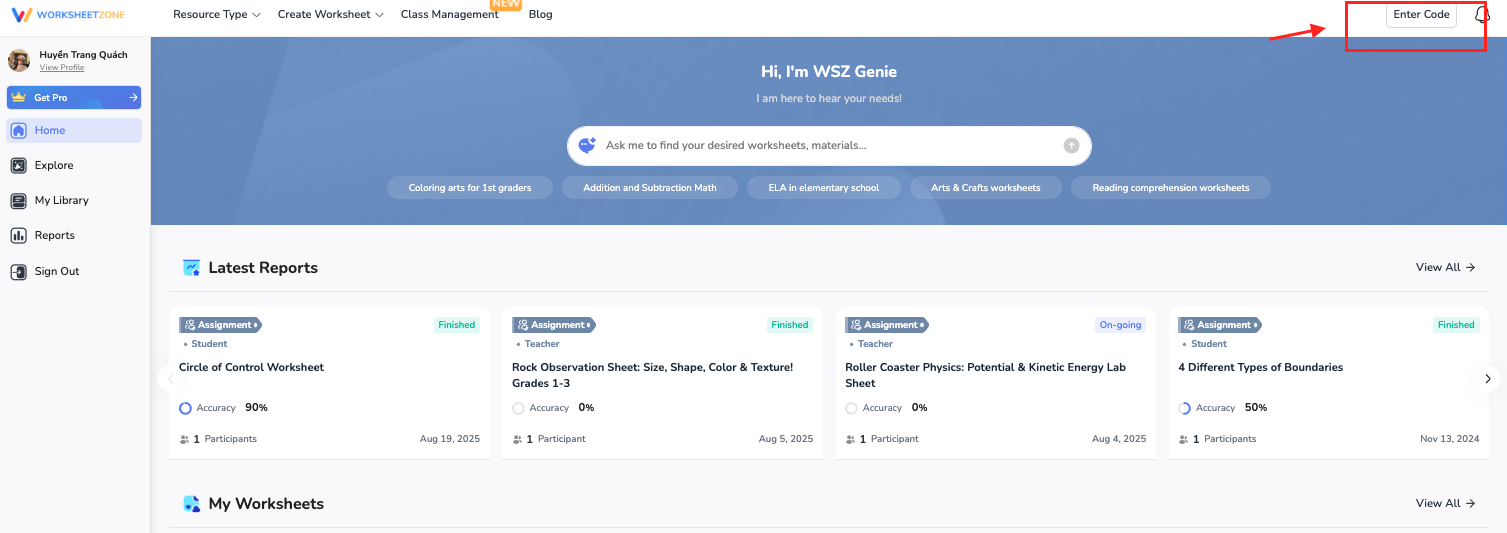
- Code: Tap Enter code on the Worksheetzone header and type the assignment code.
For a Quiz Assignment
Step 1: Enter Your Name & Review Assignment Details
Before you start, a small pop-up will appear. It shows key information about the assignment:
- Title or Topic – The name of the worksheet (e.g., “Fractions Practice” or “Reading Comprehension”).
- Start Date & Due Date – The time window when you are allowed to do the homework.
- Attempts Allowed – How many times you can complete this assignment. Sometimes it’s only once, other times you may get more tries.
- Time Limit (if set) – Some assignments may have a timer, so you’ll need to work within the countdown.

Enter your name in the box. Then click Start to begin.
Step 2: Navigation
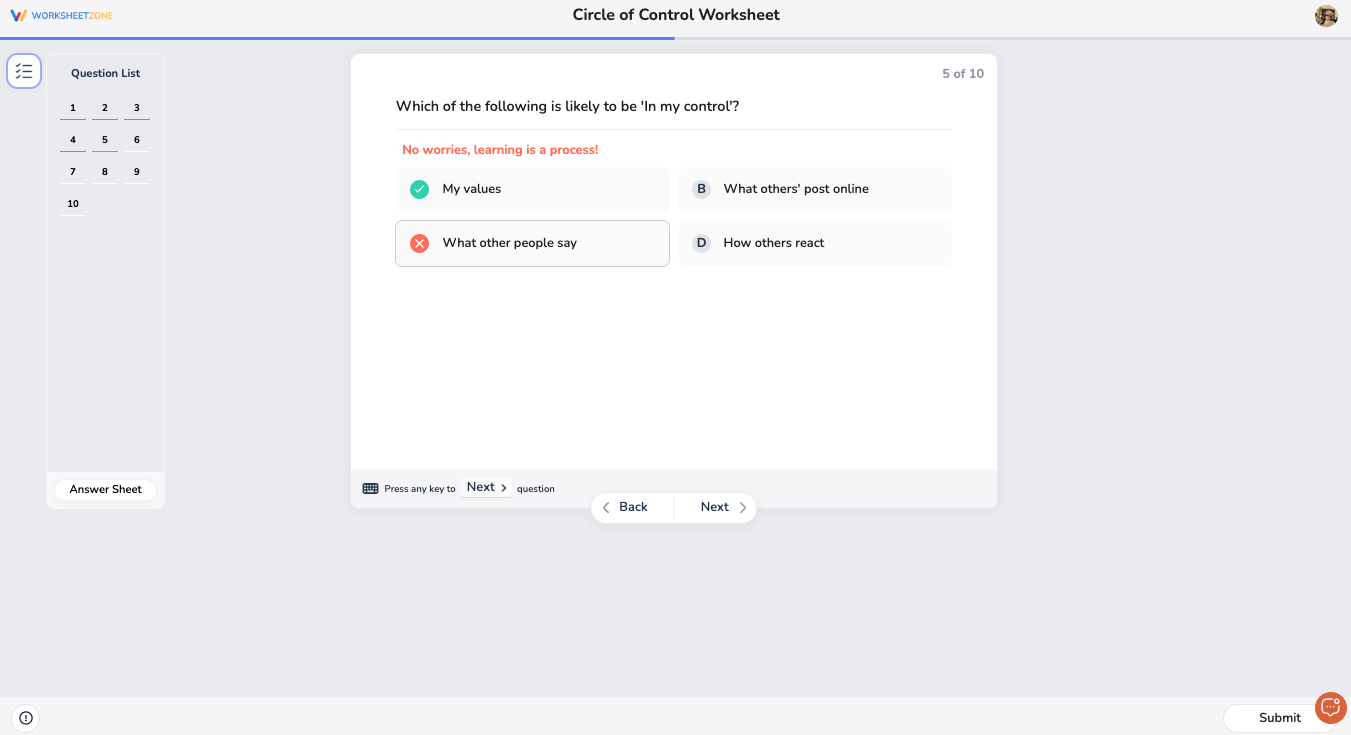
Once you start a quiz, your screen will have three main parts:
- Left Panel – This shows the Question List. Each number represents a question. You can click any number to jump directly to that question. There’s also an Answer Sheet button that shows all questions at once, so you can quickly check which ones are unanswered.
- Center Area – This is where the current question and the answer options appear.
- Bottom Navigation – At the bottom, you’ll see Back and Next buttons to move between questions, and a Submit button at the bottom-right.
Step 3: Completing Questions
- Multiple Choice – Click on A, B, C, or D (or press 1–4).
- Fill in the Blank – Type the missing word(s). Some questions may provide a word bank you can choose from.
- Open Response – Type your full answer in the text box provided.
Depending on how your teacher sets it up, you may get instant feedback (whether your answer is correct or incorrect) right after answering.
Step 4: Submitting Your Quiz
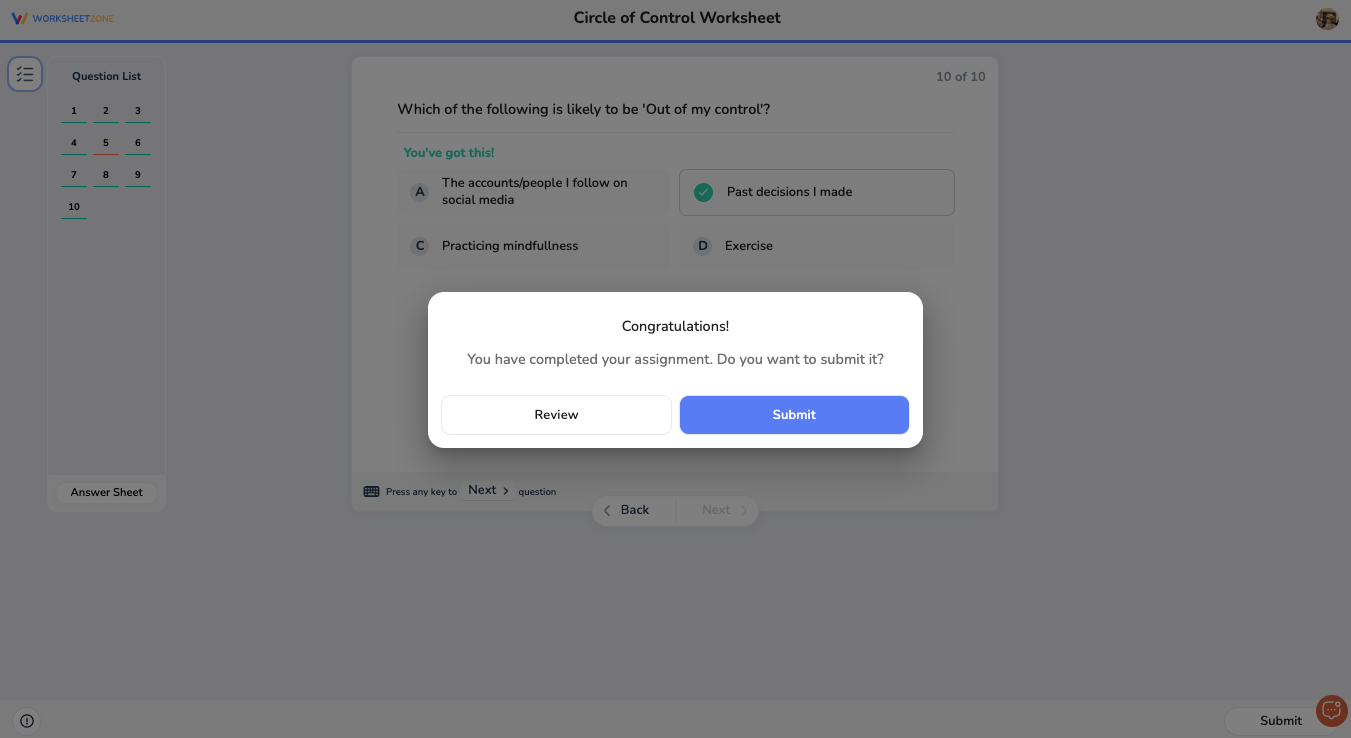
When you’ve answered all the questions:
- Click Submit to finalize your assignment.
Name-image-5:submitting-your-quiz
- After submission, there are two possible cases:
- If your teacher enabled Show Answers, you will immediately see which answers were correct and which were not. Sometimes explanations are also included.
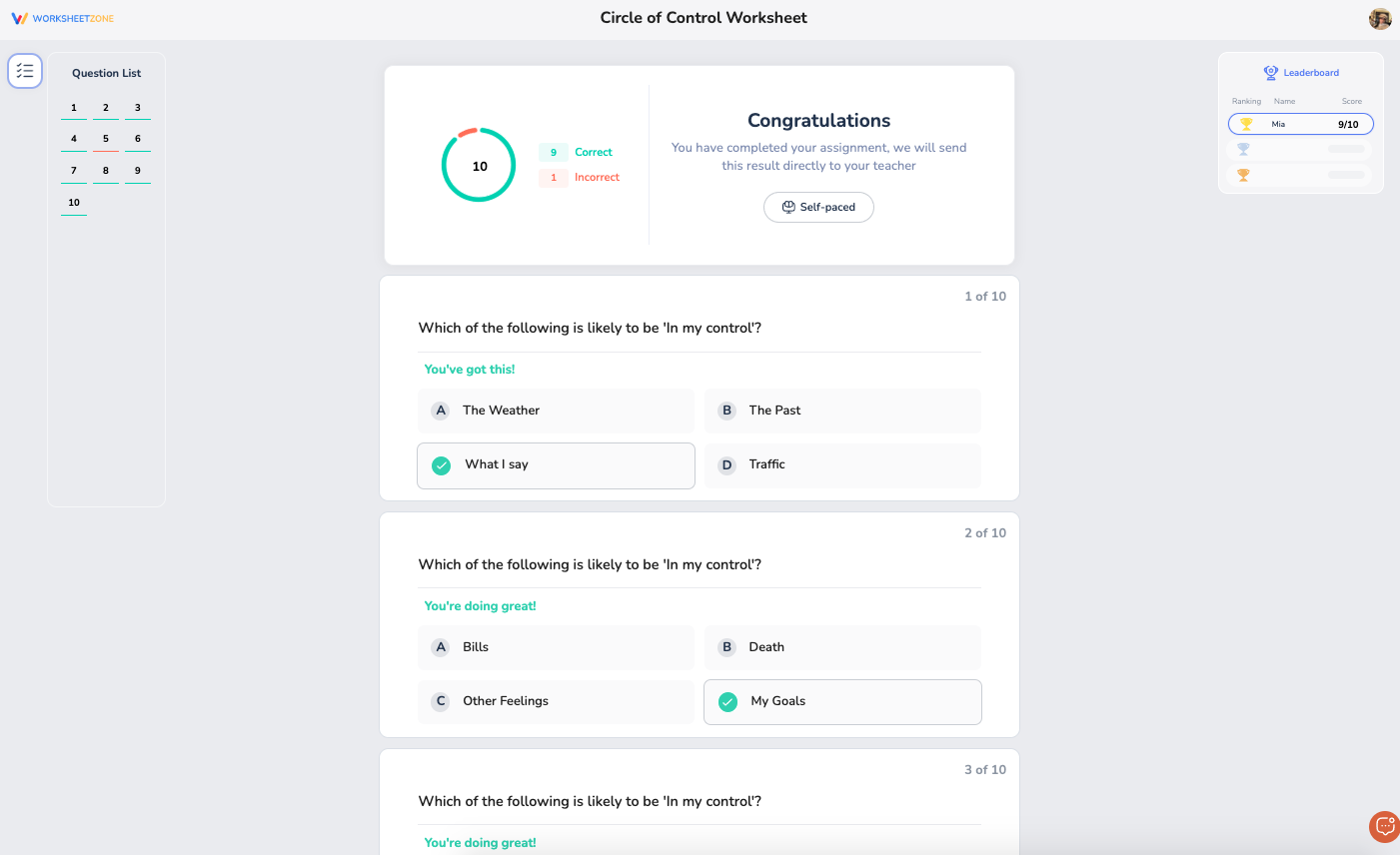
- If Show Answers is turned off, you will only see your overall score.
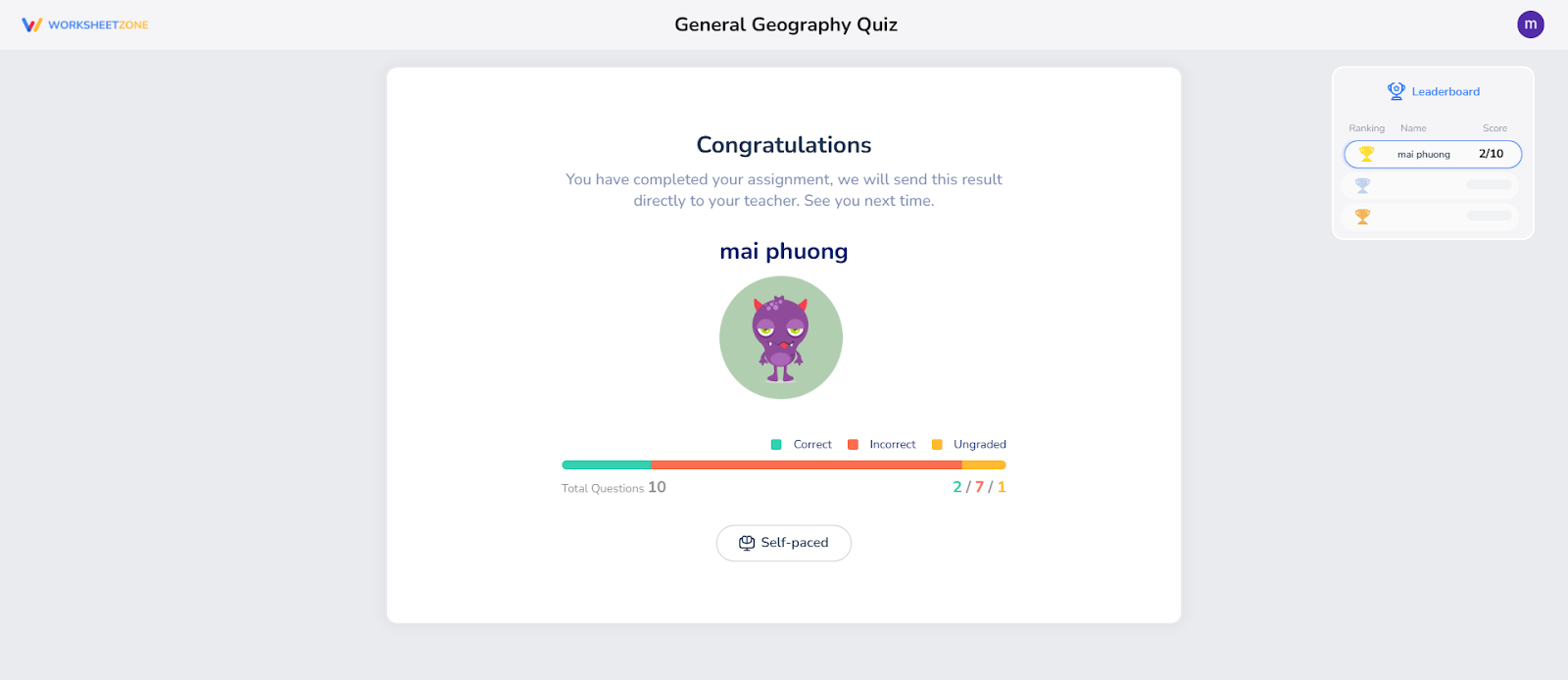
- A Leaderboard may appear to show how your score compares to classmates. If you want to see details, click View Details.
- If your teacher allowed more than one attempt, you’ll see a Reattempt button. Use this to retry the quiz and aim for a higher score before the due date.

For a Non-Quiz Assignment
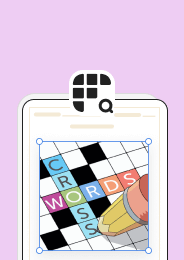
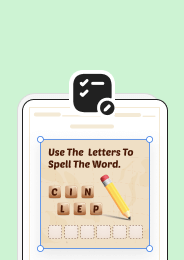
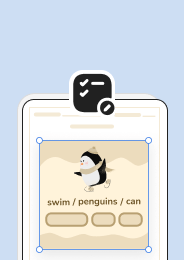
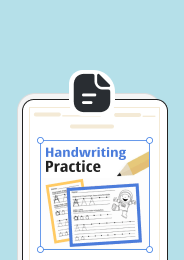
Non-quiz homework includes activities such as Word Searches, Crosswords, Matching, Drag-Drop, Handwriting, etc.
Step 1: Navigation
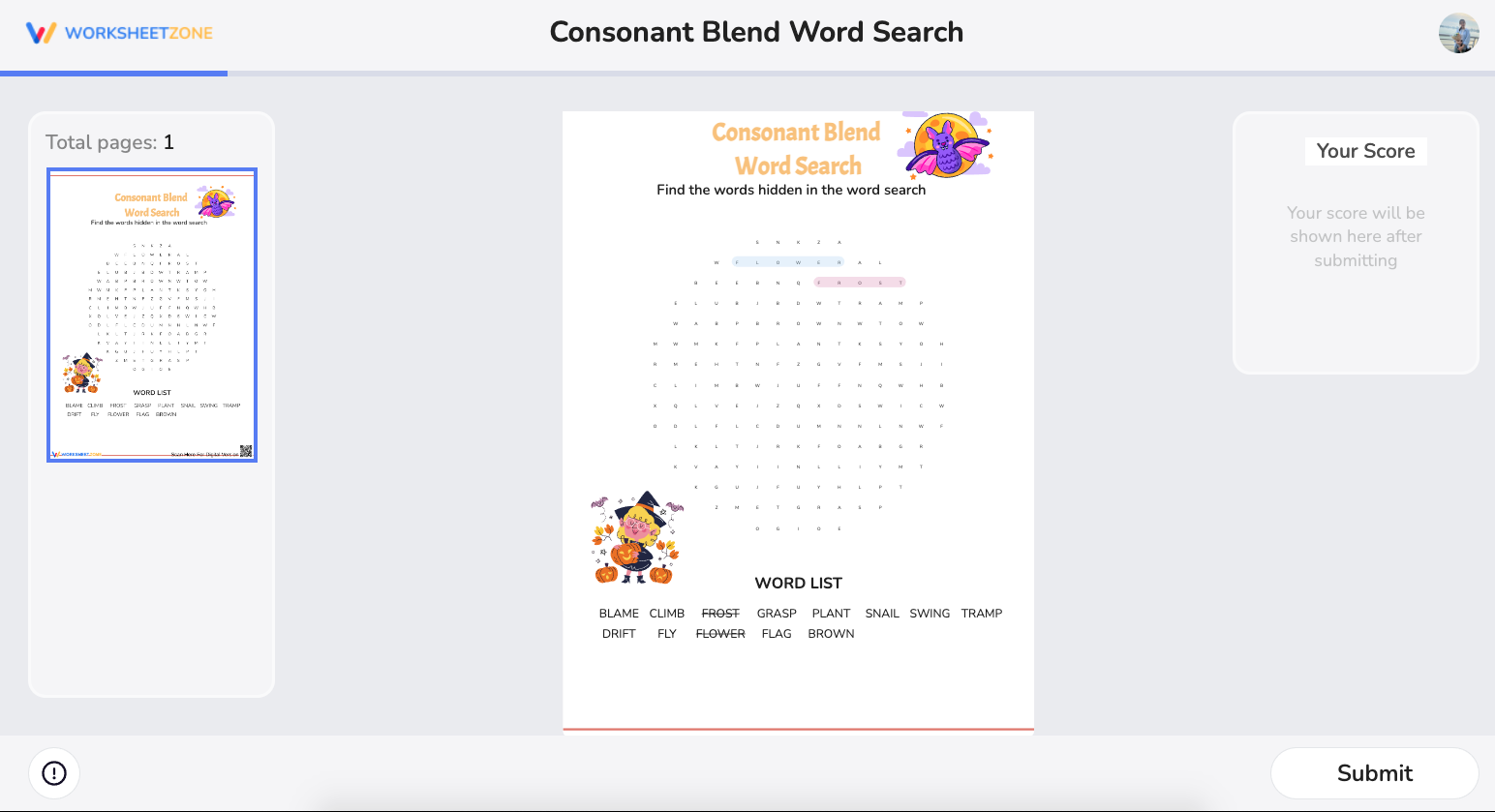
Your screen will look slightly different from a quiz:
- Left Column – Small thumbnail previews of all worksheet pages. The highlighted one is the page you are currently working on.
- Center Area – The main worksheet where you type, click, or drag to answer.
- Top/Side Controls – Options to Zoom In/Out, see Assignment Details, or later Show Answer Key (if your teacher allows it).
- Bottom-Right – The Submit button to turn in your work.
Step 2: Completing Different Activities
Here are some examples of how you might complete a non-quiz worksheet:
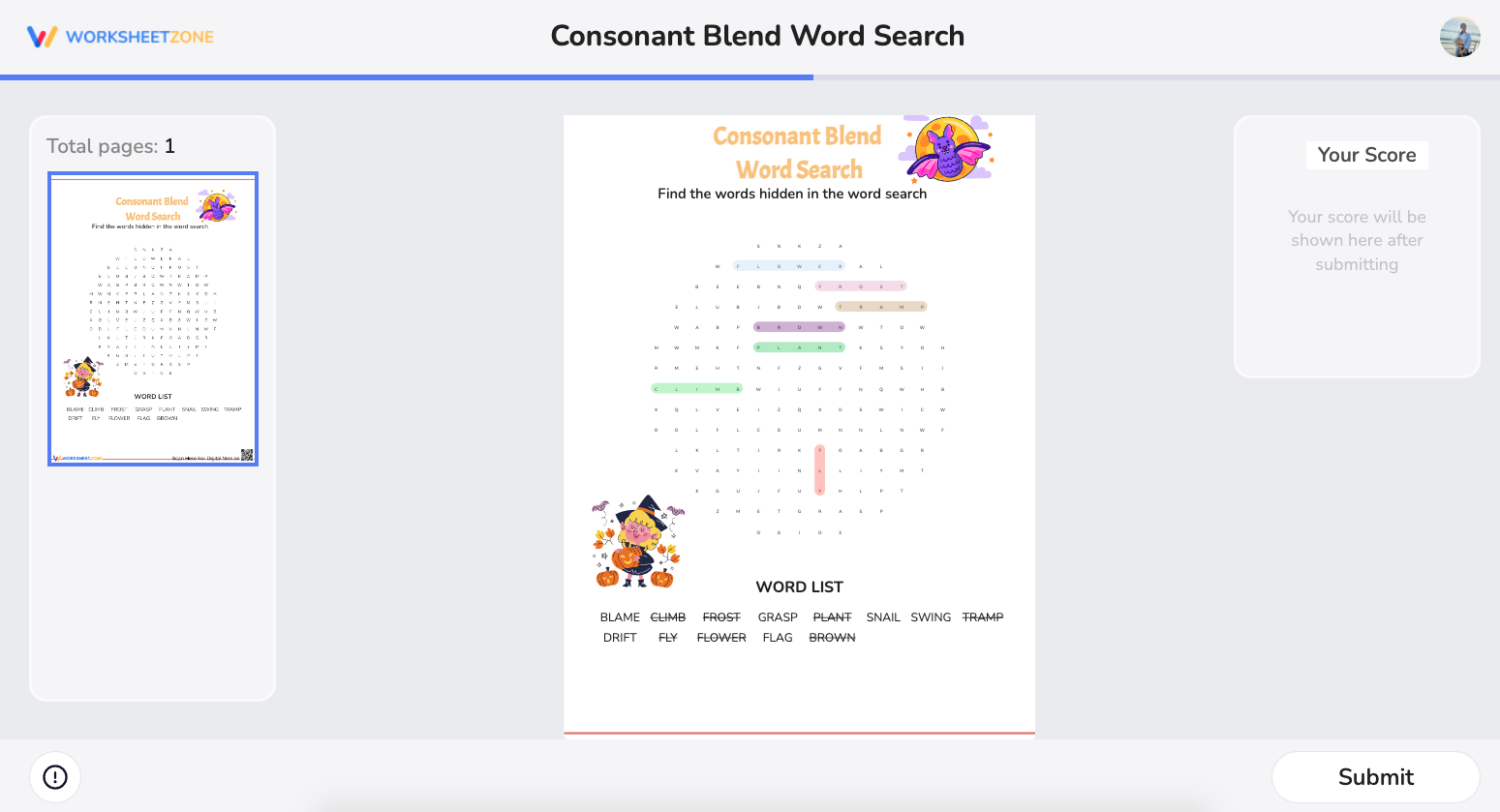
- Word Search – Click and drag across letters to highlight the hidden word.
- Crossword / Math Crossword – Click a square and type the answer. Use the given clues or math problems.
- Handwriting / Name Tracing – Trace the dotted letters or write directly inside the provided boxes.
- Matching – Drag one item to connect it with another.
- Drag-and-Drop – Move answer blocks to the correct spots.
- Dropdowns – Click a box and choose the correct answer from a list.
- Typing Boxes – Simply click into the box and type your answer.
If your teacher sets a time limit, it will start counting down as soon as you press Start, and it stops only when you click Submit.
Step 3: Submitting Your Non-Quiz Assignment
When finished:
- Click Submit.
- Your Score will appear on the right.
- If your teacher allowed it, you’ll see a checkbox for Show Answer Key. Tick it, and the worksheet will switch from showing your answers to showing the correct ones.
- A Leaderboard may appear, just like with quizzes, so you can see your ranking.

Final Thoughts
Homework in Worksheetzone is simple and built to help you learn on your own. Just open, complete, and submit your work. After finishing, you’ll see your score, check answers if allowed, and even try again to improve. Each assignment is a chance to practice, grow, and track your progress. With Worksheetzone, homework isn’t just about finishing tasks—it’s about building confidence and learning step by step.