


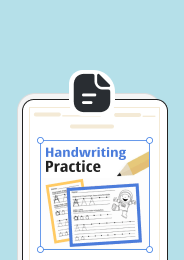
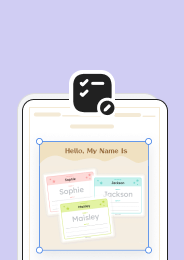
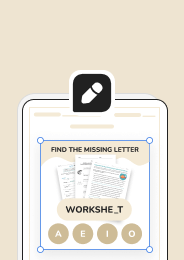


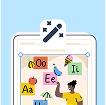




The Convert a Document feature in Worksheetzone Generate by AI makes it simple to transform your existing teaching files – such as PDFs or scanned images – into engaging, interactive worksheets. In just a few steps, you can detect questions, add auto-grading, and customize activities like multiple choice, fill-in-the-blank, or matching exercises. This tool is perfect for modernizing old resources, saving hours of manual work, and boosting student engagement. Whether for classroom use or remote learning, Convert a Document helps you bring any static worksheet to life in a digital format.
What is “Convert a Document” in Generate by AI?
The Convert a Document tool transforms your existing teaching materials – such as PDF worksheets, scanned images, or printed assignments – into editable, interactive digital resources. Using AI, it detects questions, answers, and formatting in your life, then turns them into ready-to-use online activities like multiple-choice questions, fill-in-the-blanks, matching games, and more.
This feature lets you:
- Quickly digitize old paper worksheets for online learning.
- Add auto-grading and interactive practice instantly.
- Save hours of manual retyping or reformatting.

Step-by-Step Guide to Using “Convert a Document”
This step-by-step guide will walk you through converting any PDF or image file into an interactive, auto-graded worksheet using Generate by AI. Follow along to see how you can upload your document, let AI detect its content, add interactive question types, and customize it for your students – all in just a few minutes.
Step 1: Access the “Convert a Document” Tool
You can start in two ways:
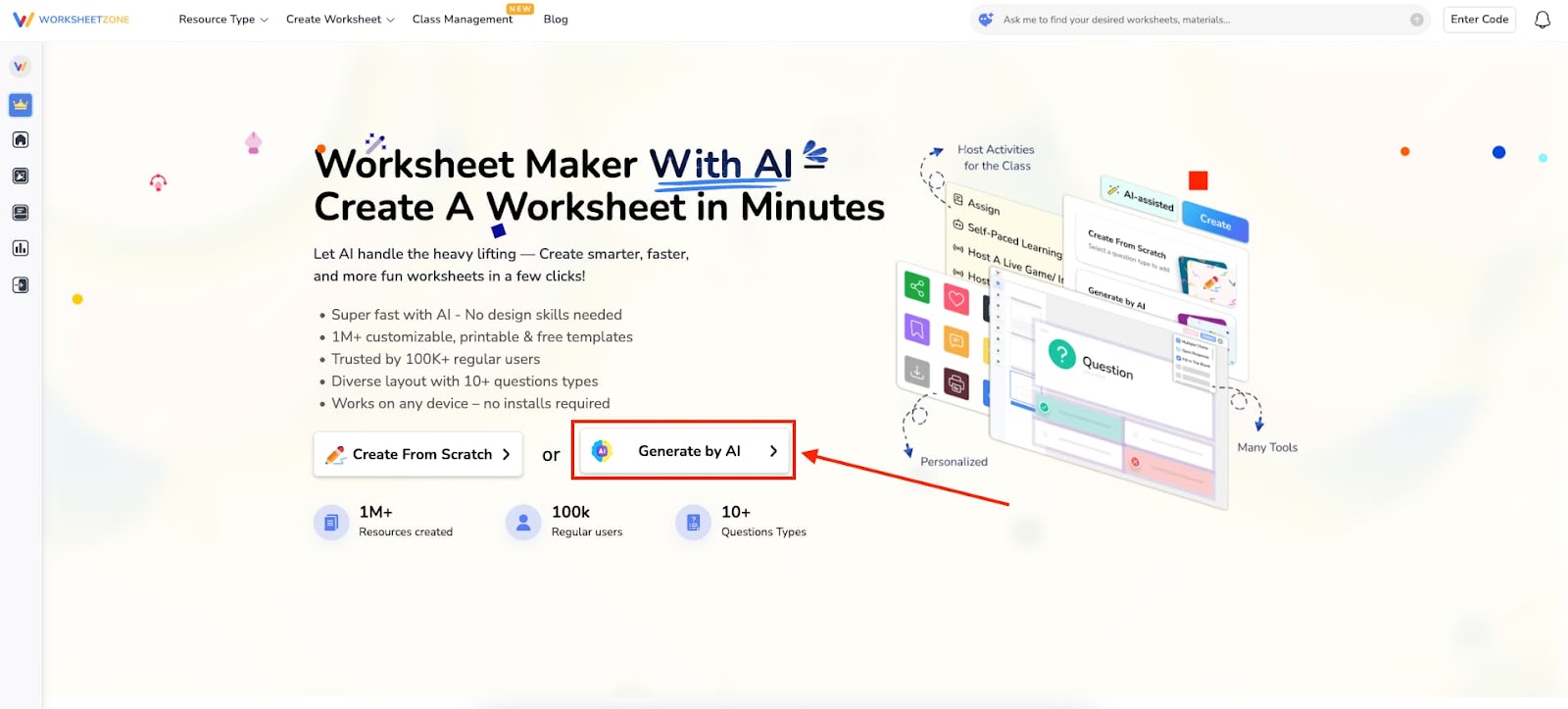
Option 1: From the Worksheet Maker landing page,
- Click “Generate by AI”.
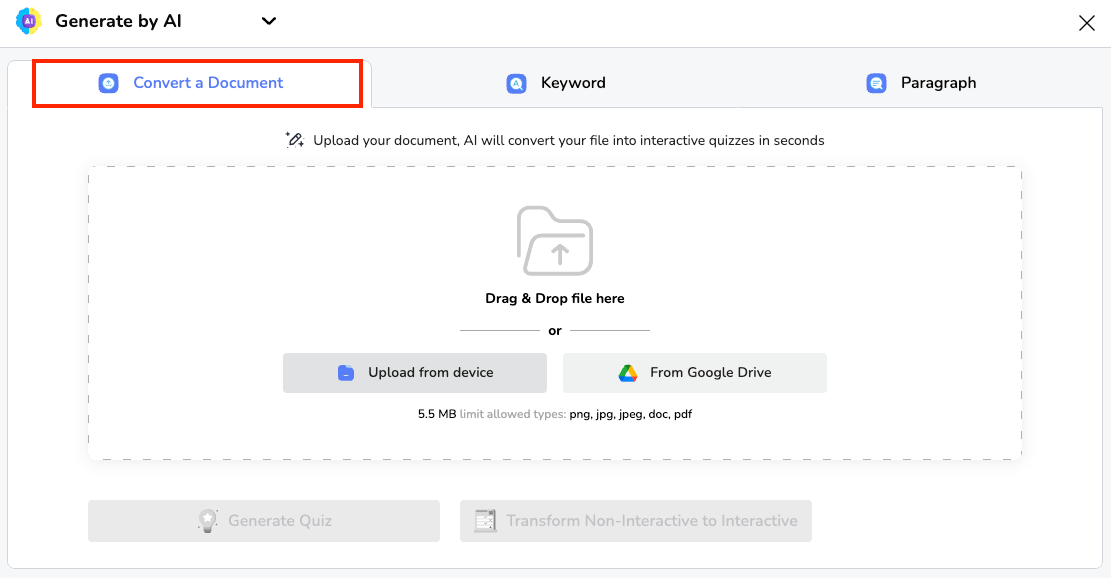
- A pop-up will appear, select the “Convert a Document” feature.
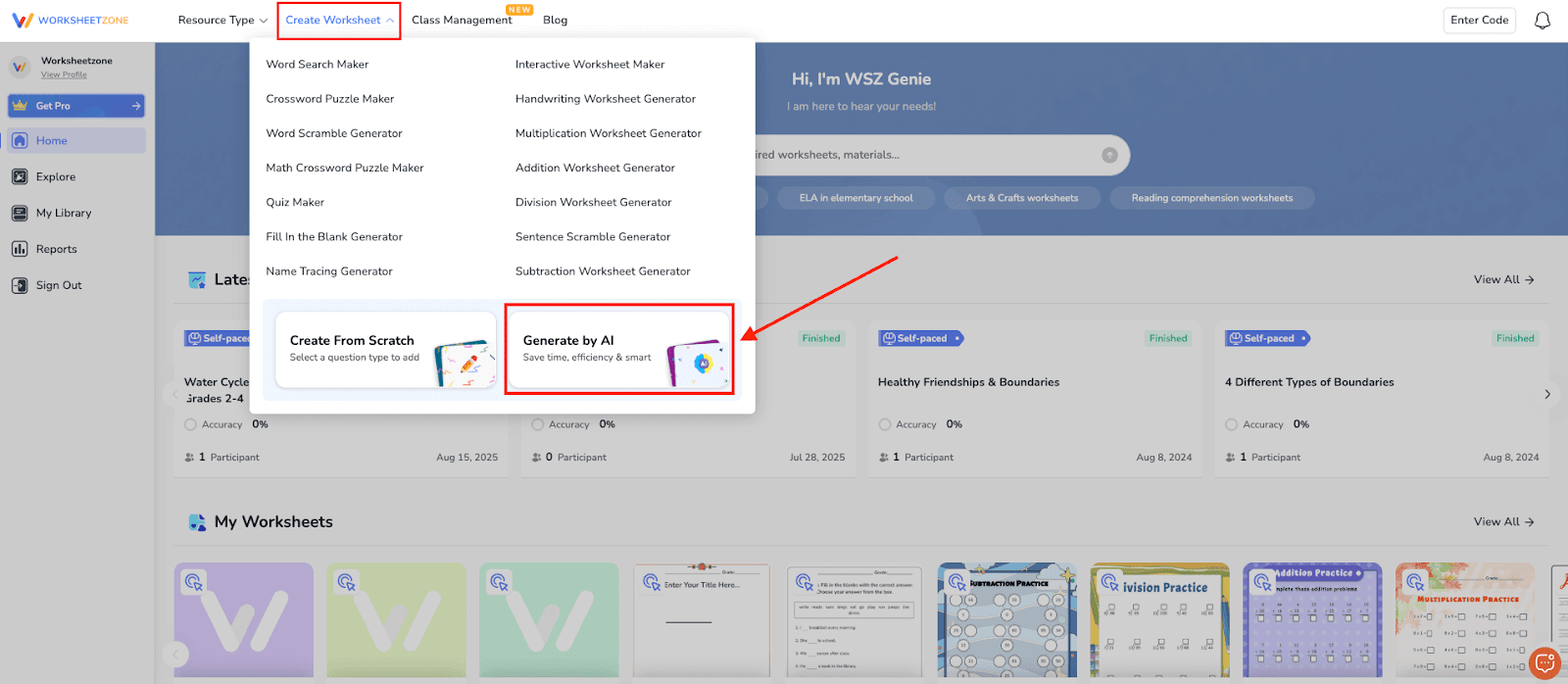
Option 2: From the Worksheetzone homepage,
- Hover over “Create Worksheet” from the top menu bar.
- Select “Generate by AI”, and then choose “Convert a Document”.
Step 2: Upload Your File
- Drag-and-drop your file
- Or click “Upload from device” and choose your document
- Supported formats: PDF, PNG, JPG, JPEG, with a file size limit of 5.5 MB.

Pro Tip: Use a clear, high-quality file so AI can detect questions and text accurately. If your file is a scan, make sure the text is not blurry.
Step 3: Choose How to Process Your Uploaded File
After uploading your document, you can choose between two AI-powered options:
Option 1: Generate Quiz
- Select “Generate Quiz” to instantly convert your PDF into a quiz.

- Wait a few moments while AI scans your files and generates quiz questions.
- Review the suggested questions:
- Check individual boxes to select specific ones.
- Or click “Select All” to keep every question.

- Once ready, click “Add Questions” to insert them into your quiz editor.

- From there, you can continue editing, adjusting answers, or changing formats (e.g., Multiple Choice, Fill in the Blank, Open Response).

Option 2: Transform Non-Interactive into Interactive
- Choose “Transform Non-Interactive into Interactive” to let AI scan and detect questions, answer spaces, and options in your document.
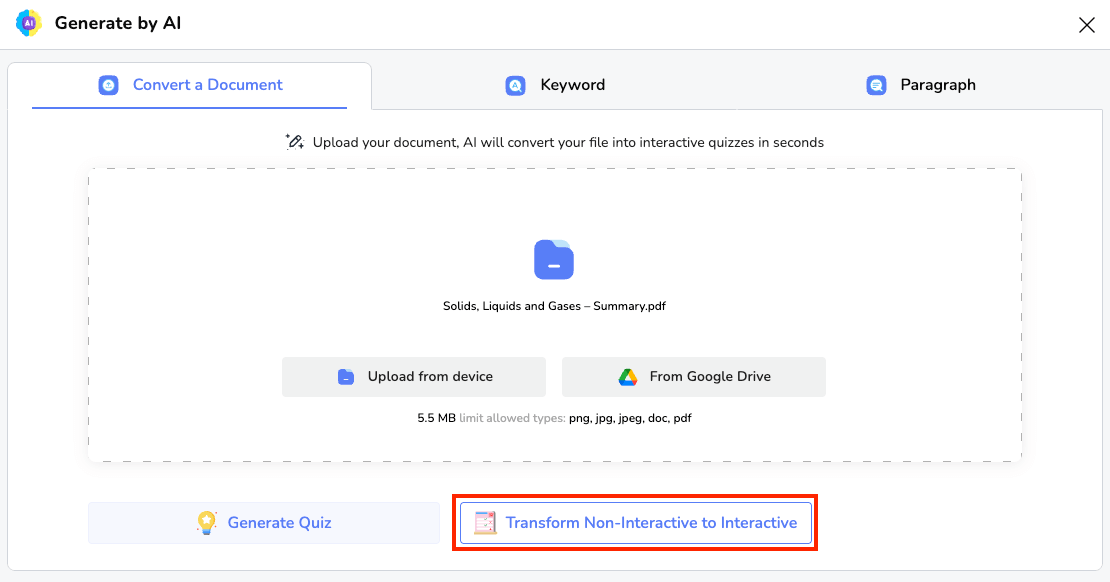
- Wait a few seconds for AI to highlight detected elements. You can then move, edit, or add interactive features as needed.
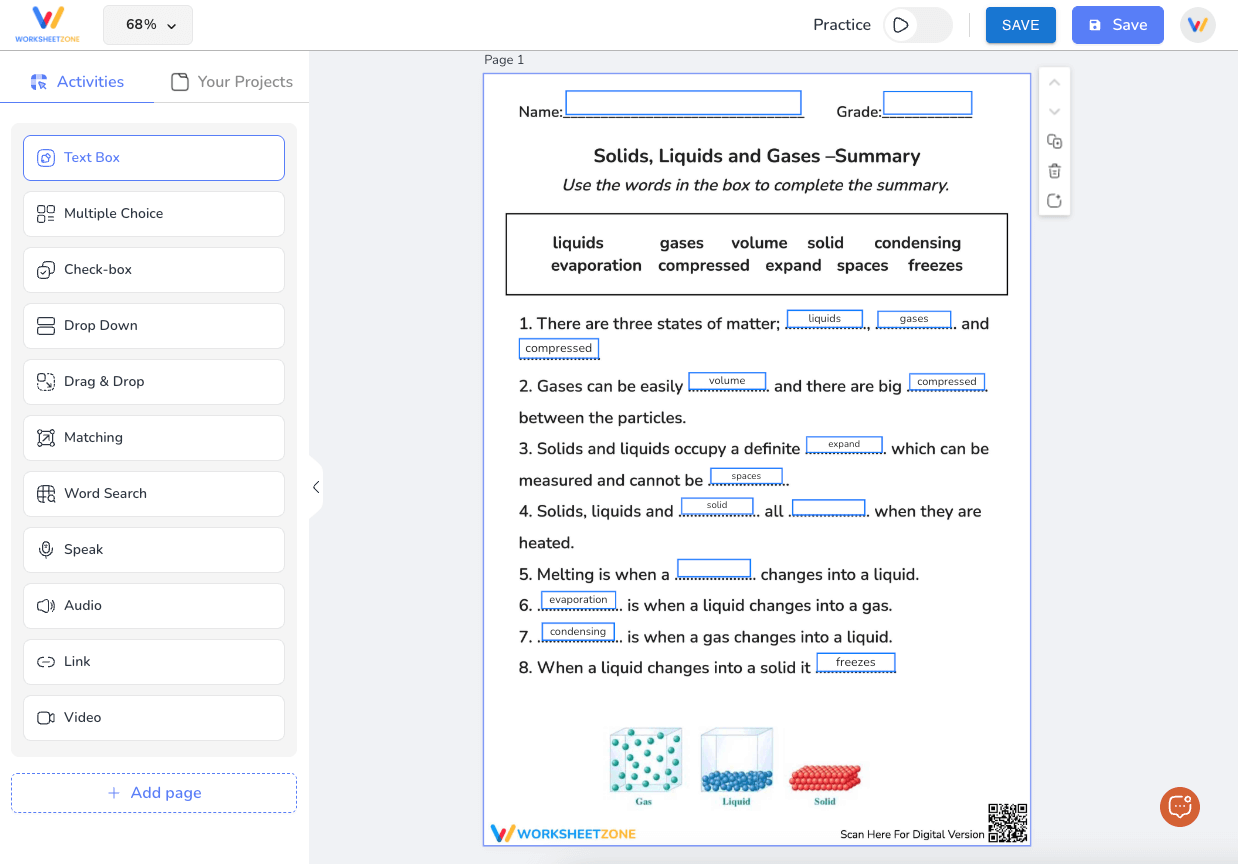
Step 4: Add or Adjust Interactive Elements
If you select Transform Non-Interactive into Interactive, AI will highlight the detected questions and blank spaces. You can now enhance your worksheet by adding interactive elements from the left sidebar, such as:
- Text Box: Let students type short or long answers.
- Multiple Choice: Create single or multiple-select questions with customizable answer choices.
- Check Box: Ideal for true/false questions or scenarios where students can select multiple correct answers.
- Drop Down: Offer a list of possible answers in a compact format.
- Drag and Drop: Let students move items into the correct place.
- Matching: Connect related terms, ideas, or definitions.
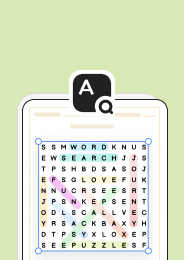
- Word Search: Turn key concepts into a hidden-word puzzle for practice.
- Speak: Students record spoken answers.
- Audio: Add sound clips for listening activities.
- Link: Include clickable resources.
- Video: Embed YouTube videos for added learning.
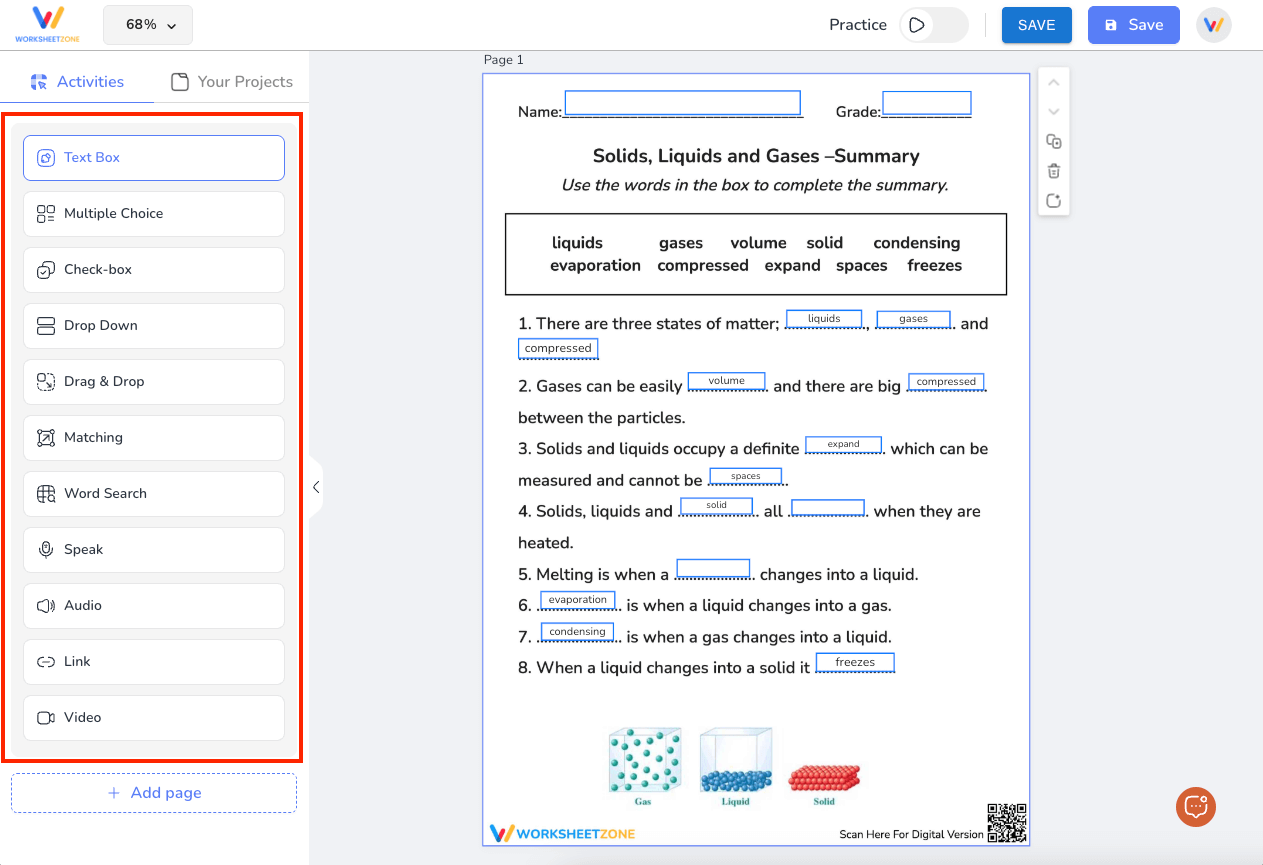
Simply drag and drop the chosen element over the relevant part of your document, then resize or adjust it to fit the content.
Step 5: Customize and Review
- Move, resize, or delete any interactive elements.
- Adjust fonts, colors, and alignment for clarity.
- Switch to “Practice Mode” to access the Student View and test the interactive features before finalizing.

Step 6: Save Your Interactive Worksheet
- Click “Save” to store your converted worksheet in My Library.
- From there, you can
- Assign it to a class.
- Launch it as a Live Game.
- Share via link or code.
- Use it in Self-Paced Learning mode.

Final Thoughts
The Convert a Document feature in Worksheetzone’s Generate by AI is a powerful way to modernize your teaching resources. With just a few clicks, you can transform old PDFs or image-based worksheets into engaging digital activities – whether as auto-generated quizzes or fully interactive worksheets. This saves valuable time, eliminates manual reformatting, and creates a more dynamic learning experience for your students. Once saved, your interactive materials can be assigned, shared, or launched instantly in class. By using this tool, you bring new life to your existing resources while making learning more efficient and enjoyable.


