








Multiple choice questions are one of the most effective and versatile ways to assess student understanding. With Worksheetzone’s Quiz Maker, generating engaging multiple choice questions is quick, customizable, and classroom-ready. Whether you’re testing core concepts, reviewing before an exam, or adding fun challenges to your lesson, the tool lets you build interactive quizzes complete with images, equations, and AI-generated options. In this guide, you’ll learn step-by-step how to create multiple choice questions, style them for clarity, and assign them to your students – all in just a few clicks.
What is a Quiz Maker with Multiple Choice Questions Feature?
A quiz maker is an online tool that allows educators, parents, and trainers to create, customize, and share quizzes for learning, assessment, or review. It provides an easy way to design interactive questions, track student progress, and deliver instant feedback – all without the need for complex software or manual grading.
Worksheetzone’s Quiz Maker is designed specifically for education, offering multiple question formats to match different teaching goals. One of its most widely used features is Multiple Choice Questions (MCQs). This format presents a question with several answer options, allowing students to select the correct one (or more, if enabled). MCQs are highly effective for:
- Checking comprehension quickly.
- Reinforcing key concepts after a lesson.
- Preparing students for standardized tests.

With Worksheetzone’s Quiz Maker, you can enhance MCQs by adding images, equations, or visual elements, adjusting the number of answer choices, and even using AI to suggest questions or options. This makes creating quizzes both faster and more engaging for learners.
Step-by-Step Guide to Making Multiple Choice Questions
Generating multiple choice questions is a quick and effective way to assess student understanding. With Worksheetzone’s Quiz Maker, you can design professional, engaging quizzes in minutes – complete with images, equations, and AI-powered question generation. Follow the steps below to create your first MCQ quiz.
Step 1: Open the Quiz Maker and Select Multiple Choice
You can start in two ways:
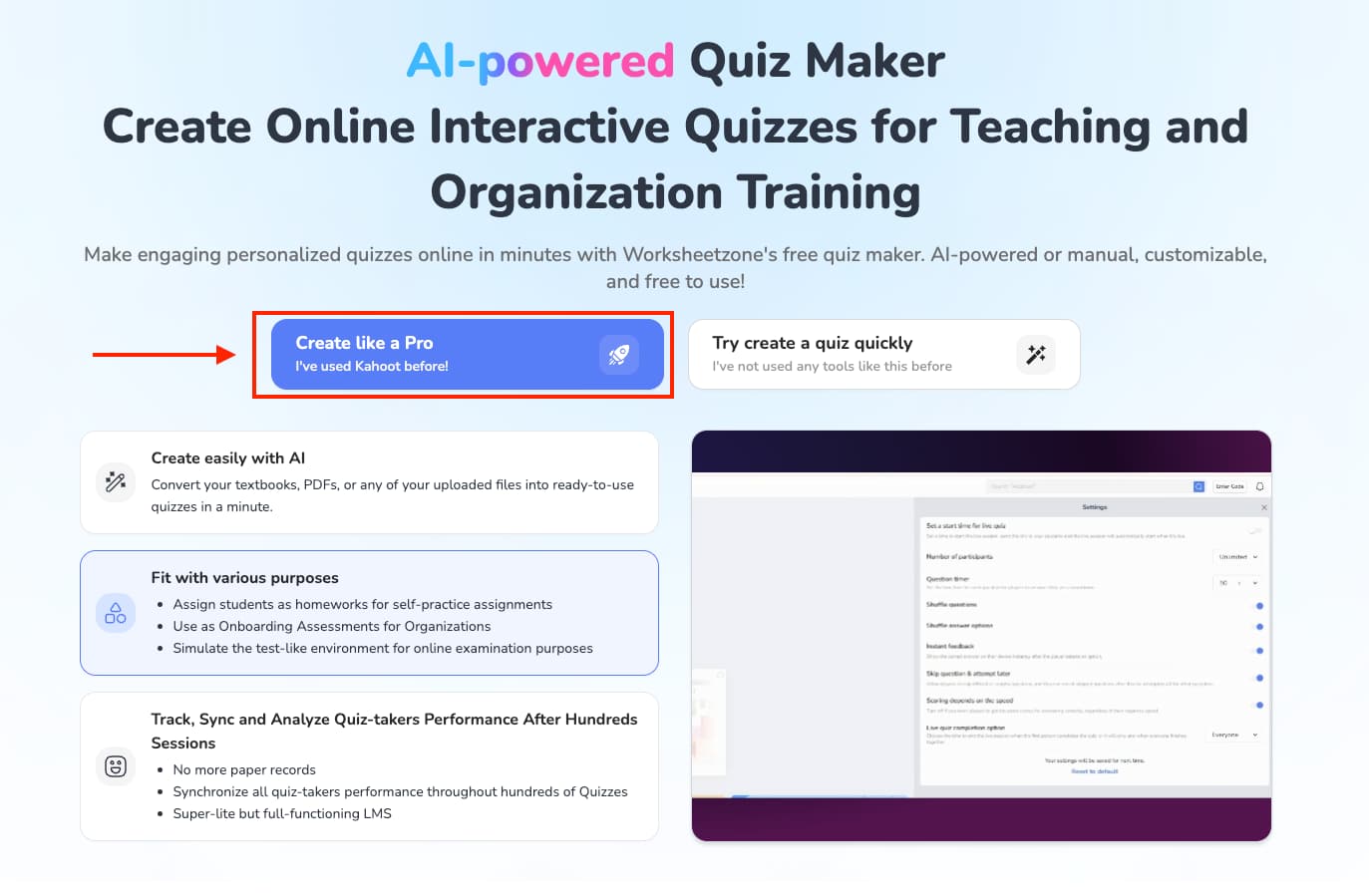
Option 1: From the Quiz Maker landing page,
- Click “Create like a Pro”.
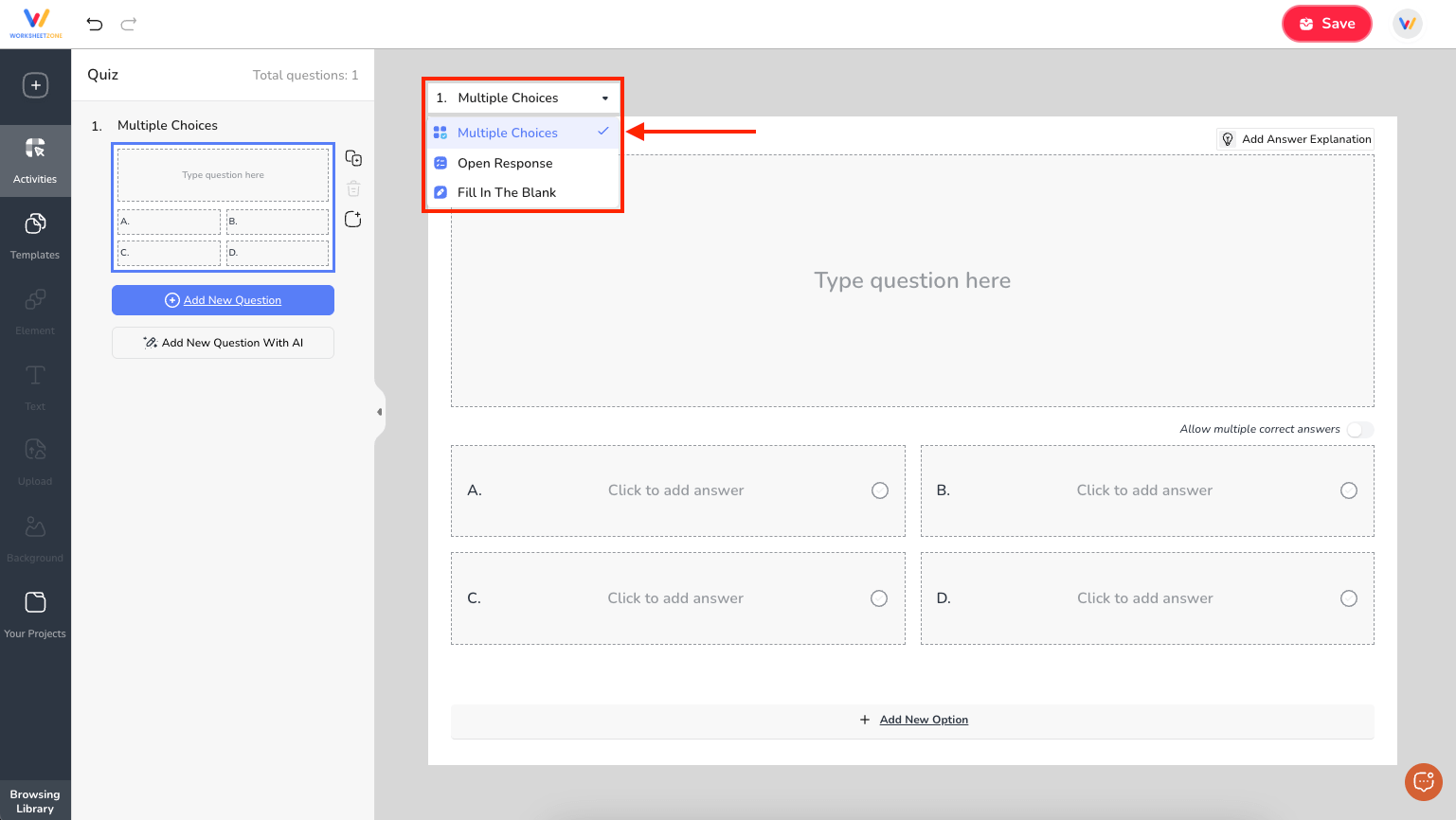
- In the quiz editor, open the question type dropdown menu and select “Multiple Choice”.
Option 2: From the Worksheet Maker landing page,
- Click “Create From Scratch”.

- In the pop-up window, choose “Multiple Choice” to begin building your quiz.
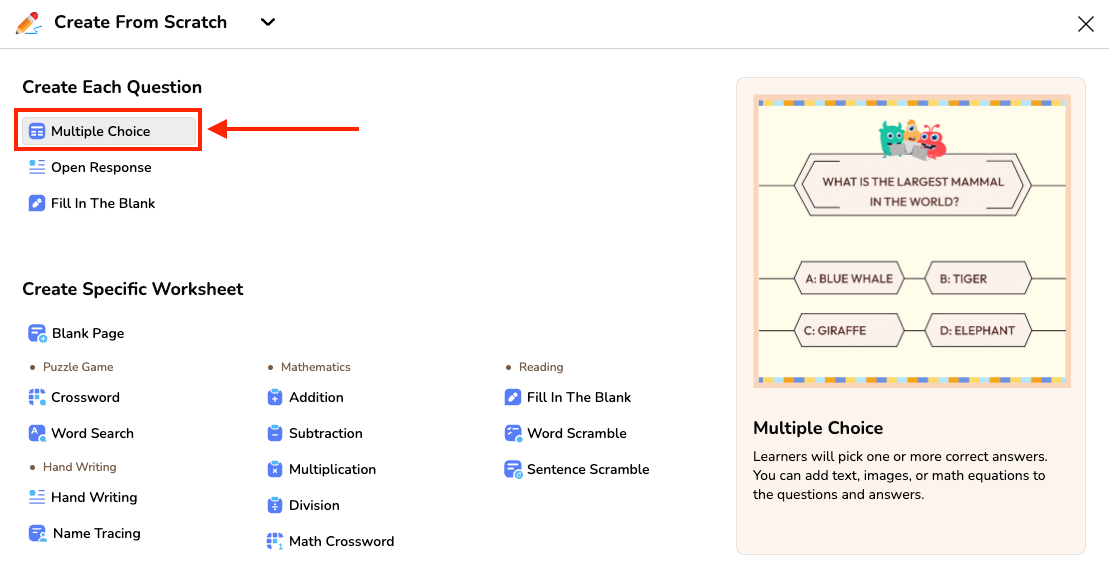
Step 2: Enter Your Question
Type your question into the question text box. You can enhance it by:
- Adding images such as diagrams, maps, or charts.
- Inserting math equations using the equation tool.
- Embedding shapes, icons, or illustrations for visual appeal.
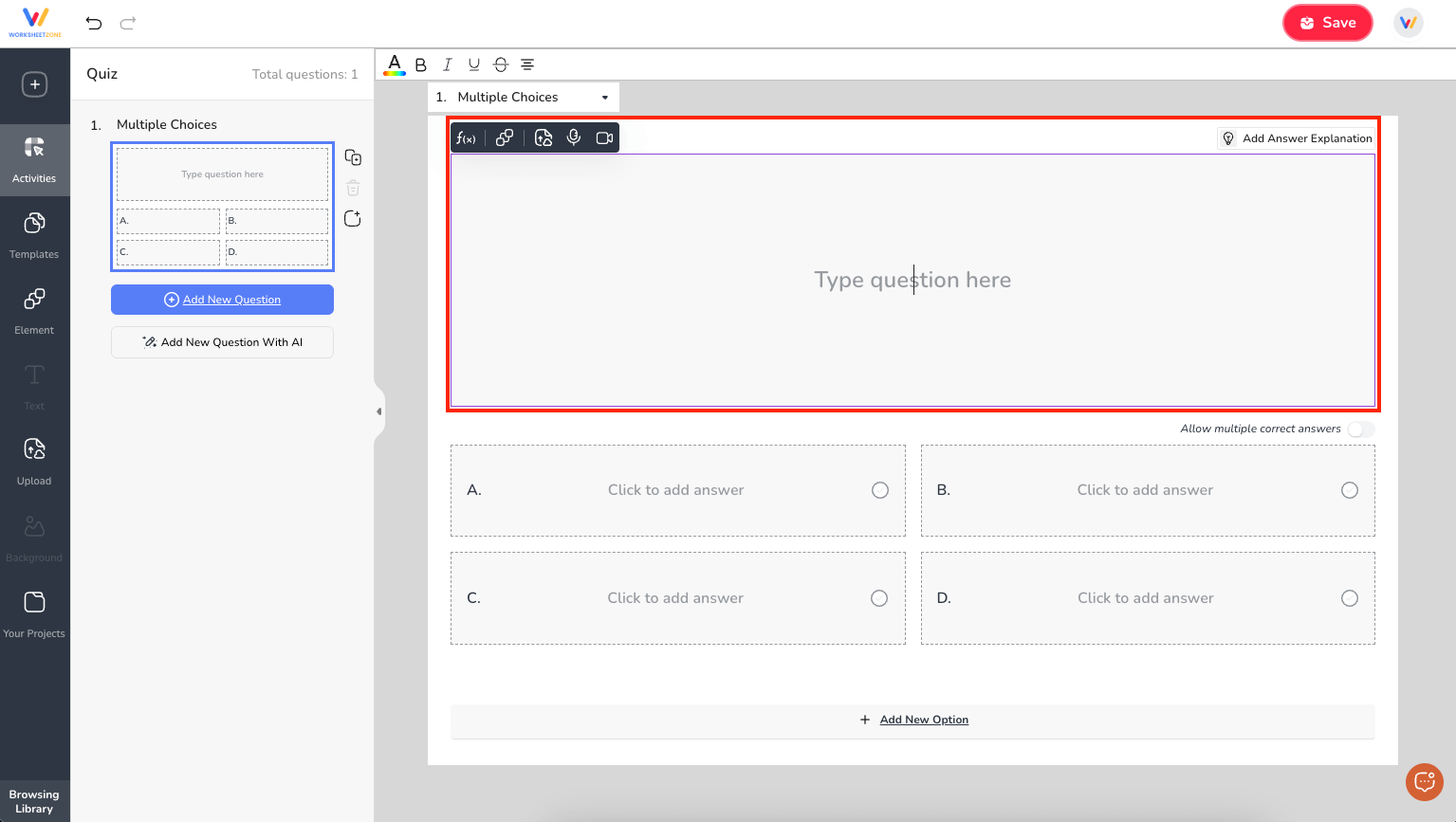
Tip: Keep your question clear and concise so students can focus on the key concept.
Step 3: Add Answer Choices
By default, you’ll see four answer option boxes. You can:
- Delete extra options if you only need two or three.
- Add more options with the “Add Answer” button.
In each option box, you can:
- Type your answer text.
- Add images or equations for visual learners.
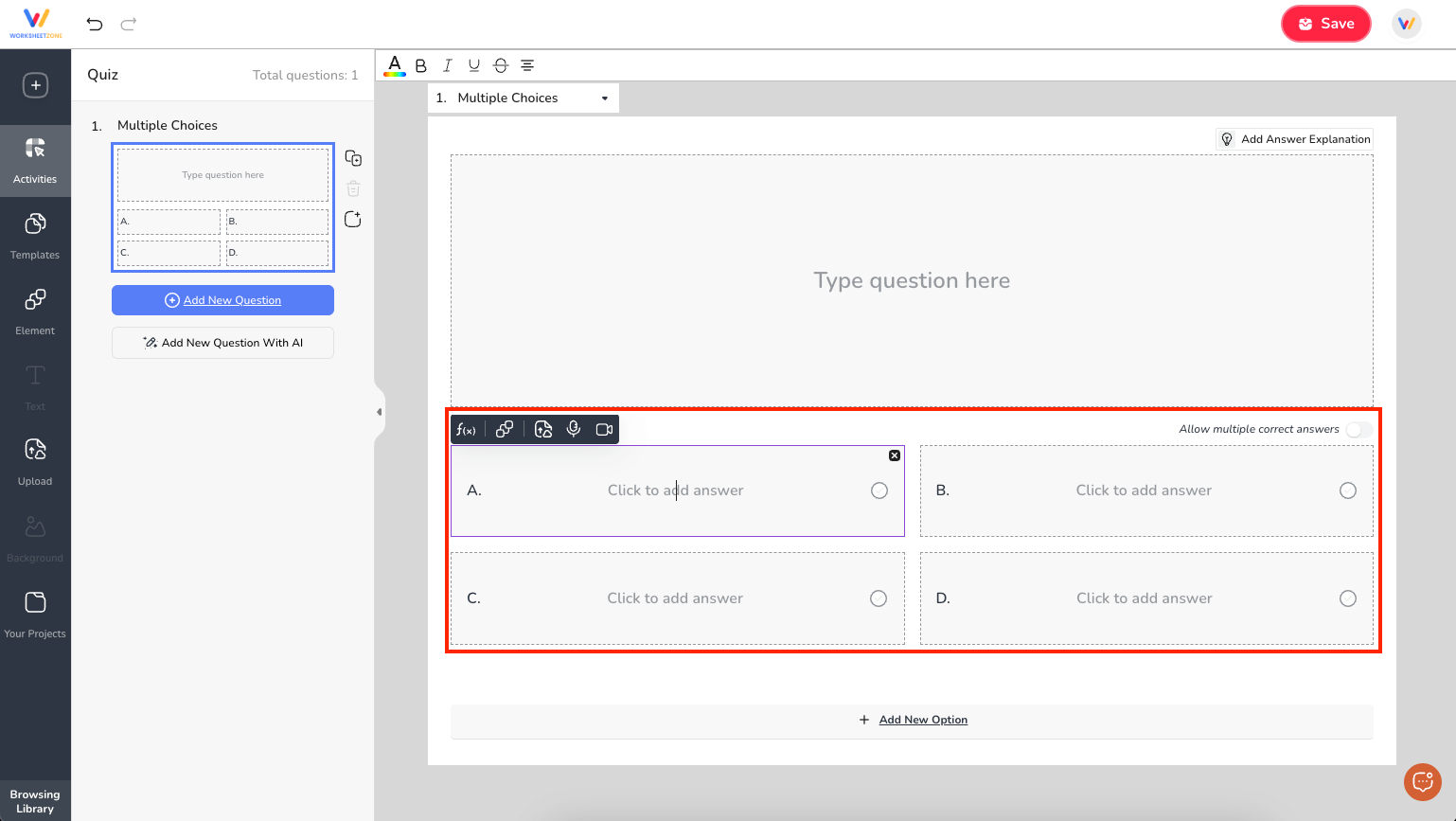
Step 4: Select the Correct Answer(s)
- Tick the radio button next to the correct answer.
- If the question has multiple correct answers, enable multi-select and tick all correct choices.

Step 5: Add an Explanation (Optional but Recommended)
Click “Add Answer Explanation” to provide:
- A brief reason why the correct answer is correct.
- Additional learning notes or tips.
When finished, click “Back to Question” to return.
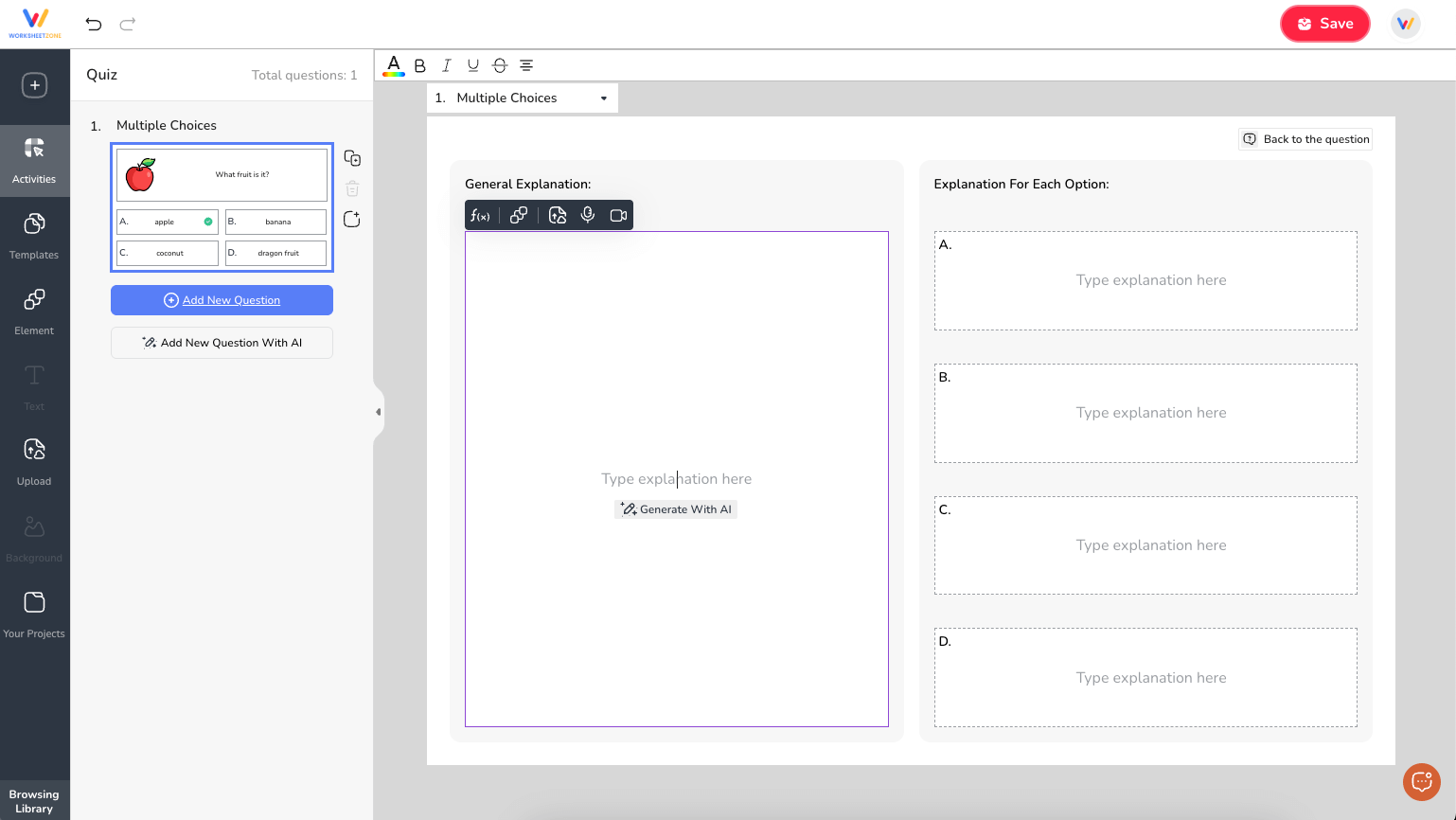
Note: This explanation will appear for students if feedback is enabled in assignment settings.
Step 6: Style and Format Your Question
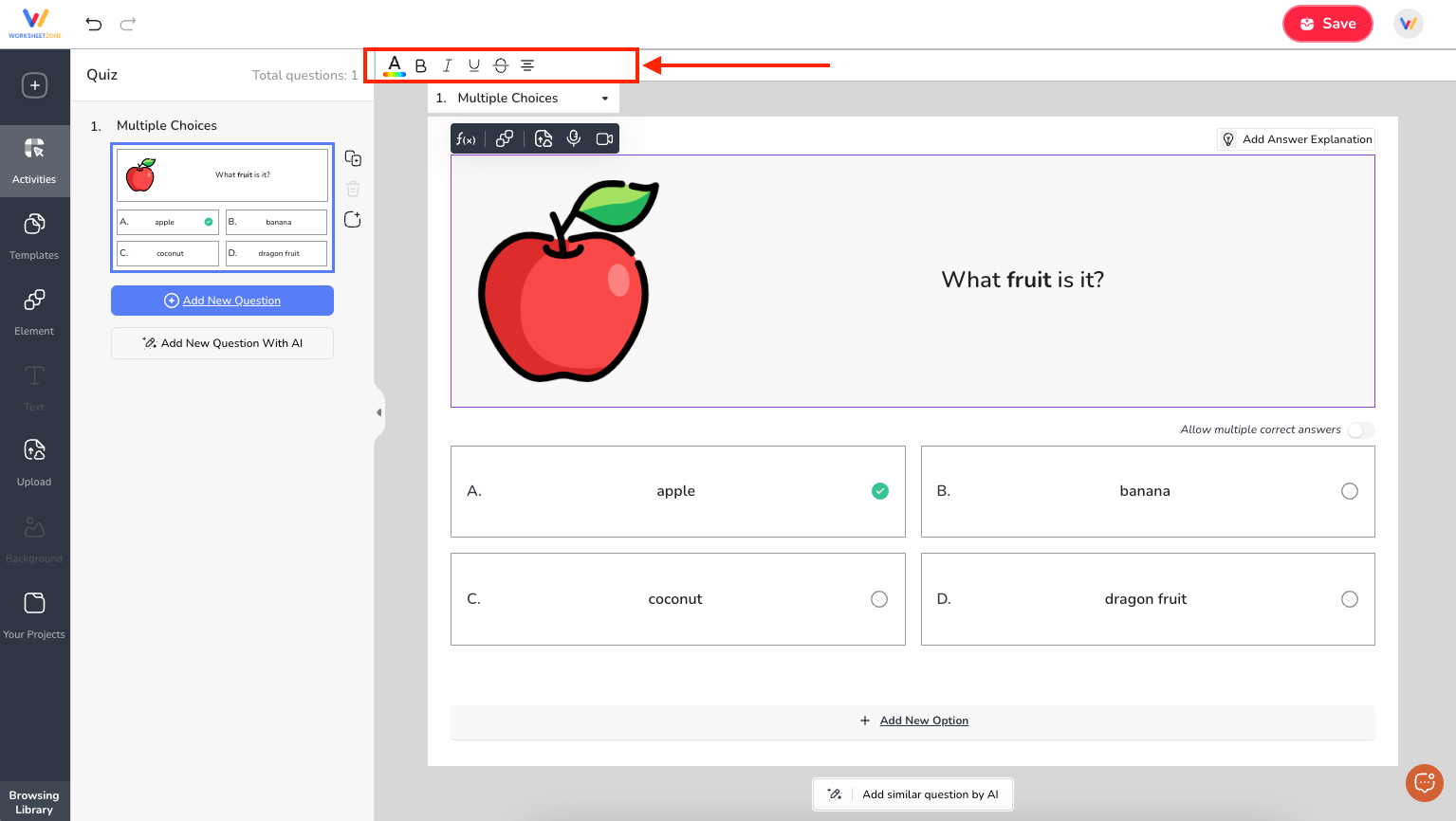
In the formatting toolbar, you can
- Change text color.
- Apply bold, italic, or underline styles.
- Adjust font size and alignment.
Step 7: Add More Questions
When you finish one multiple choice question:
- Click “Add New Question” to create the next one manually.
- Or click “Add similar question by AI” to automatically generate a related question.

- Or click “Add New Question with AI”, enter a keyword or prompt, and let AI generate fresh questions for you.

Step 8: Save Your Quiz
Once your questions are ready, click “Save” and fill in:
- Title, description, and cover image (optional but recommended).
- Language and grade level.
- Tags for easier searching later.
You can publish your quiz so everyone can see it in your library, or keep it private.

Step 9: Assign, Host, or Print
After saving, you can:
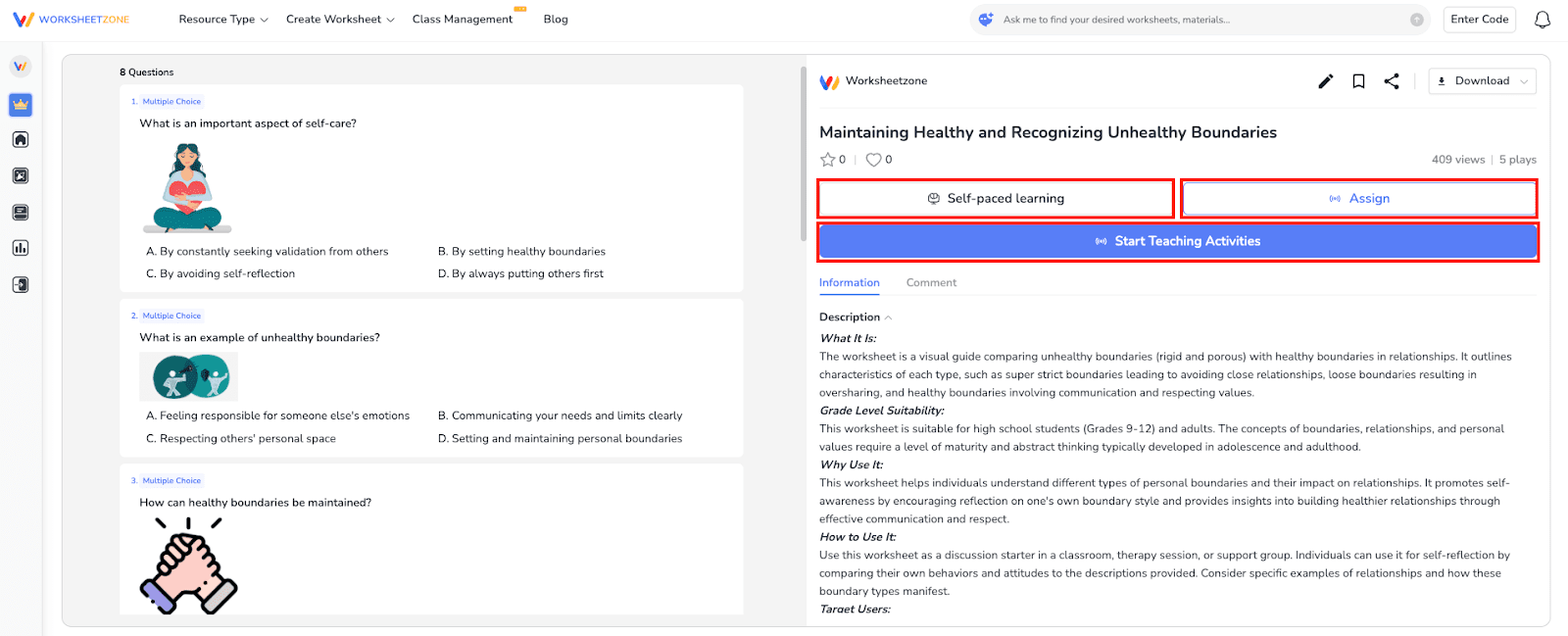
- Assign the quiz to your class with due dates and the number of attempts.
- Host it as a Live Game for real-time competition.
- Enable Self-Paced Learning for flexible practice.
- Download or print the quiz for offline use.
Other Popular Tools for Generating Quizzes
While Worksheetzone’s Quiz Maker is a powerful option, there are other platforms that can help you design interactive quizzes. Here are some top picks and what they offer:
1. Quiz Maker
What’s Great:
- Supports various question types, including multiple choice, true/false, and open-ended.
- Allows for scoring and feedback to participants.
Things to Consider:
- The free version has limited customization features.
- Some advanced reporting tools are only available on paid plans.
2. Canva
What’s Great:
- Wide selection of visual templates.
- Drag-and-drop editing with multimedia support.
Things to Consider:
- Lacks built-in scoring and assessment features.
- Premium templates and elements require a paid subscription.
3. Wayground
What’s Great:
- Offers fun, competitive formats.
- Simple setup for quiz creation.
Things to Consider:
- Limited options for in-depth assessments.
- Fewer customization tools compared to design-oriented platforms.
Final Thoughts
Making multiple choice quizzes with Worksheetzone’s Quiz Maker is fast, flexible, and effective for both teaching and assessment. From adding images and equations to using AI for question generation, every feature is designed to save you time while engaging your students. Whether you choose to assign quizzes for homework, host them live in class, or allow self-paced practice, you’ll have full control over content and delivery. Start exploring the tool today and see how easily you can generate professional, interactive quizzes that boost learning outcomes. Try it now and bring your lessons to life in just a few clicks.