









Views
Plays


Google Drawing Tools & Shortcuts Worksheet | Grade 6 Ready
Paste this activity's link or code into your existing LMS (Google Classroom, Canvas, Teams, Schoology, Moodle, etc.).
Students can open and work on the activity right away, with no student login required.
You'll still be able to track student progress and results from your teacher account.
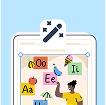
This Grade 6 technology worksheet helps students identify essential Google Drawing tools and master critical keyboard shortcuts. By matching icons to functions and selecting correct key combinations, learners build the digital literacy required for modern creative projects. It provides a structured way to assess software proficiency before starting complex design tasks.
At a Glance
- Grade: 6 · Subject: Technology
- Standard:
CCSS.ELA-LITERACY.W.6.6— Use technology to produce and publish writing and interact with others- Skill Focus: Google Drawing interface and shortcuts
- Format: 4 pages · 19 problems · Answer key included · PDF
- Best For: Computer lab quiz or sub plan
- Time: 15–20 minutes
The packet contains 4 pages featuring 19 multiple-choice questions. The first half focuses on visual recognition, asking students to name specific icons like the Zoom tool, Select arrow, Shape tool, and Fill bucket. The second half transitions to technical proficiency, testing knowledge of keyboard shortcuts for actions such as Undo, Select All, and Layering. A comprehensive answer key is provided for quick grading.
Zero-Prep Workflow:
1. Print: Select the 4-page PDF and print enough copies for your class in under 2 minutes.
2. Distribute: Hand out the worksheets at the start of a computer lab session or as a quiet desk activity.
3. Review: Use the included answer key to grade the 19 responses in less than 1 minute per student. This resource is ideal for emergency sub plans because it requires no prior software setup or student login to complete.
This resource aligns with CCSS.ELA-LITERACY.W.6.6, which requires students to use technology to produce and publish writing. By mastering the Google Drawing interface, students gain the foundational skills needed to incorporate visual elements into their digital publications. Both standard codes can be copied directly into lesson plans, IEP goals, or district curriculum mapping tools.
Use this worksheet as a formative assessment during the first week of a digital arts or technology unit. Assign it after a brief demonstration of the Google Drawing interface to check for immediate understanding. Teachers should observe if students can identify the "Google Magic" undo button, as this is a frequent pain point in digital creation. Completion typically takes 15 to 20 minutes.
This is designed for middle school students in Grade 6, though it serves as an excellent refresher for older students. It is particularly helpful for English Language Learners who benefit from the visual icon-to-word matching. Pair this with a live scavenger hunt inside a blank Google Drawing file to reinforce the concepts and ensure students can find these tools in the actual software.
Proficiency in digital tool navigation is a prerequisite for the higher-order creative tasks demanded by modern educational standards. According to the RAND AIRS 2024 report, students who receive explicit instruction on software interfaces and keyboard shortcuts demonstrate significantly higher efficiency when performing multi-step digital tasks. This worksheet addresses the technical barrier to entry by isolating 19 key functions within the Google Drawing environment. By focusing on CCSS.ELA-LITERACY.W.6.6, the resource ensures that students are not just using technology, but mastering the specific mechanics required to produce professional-grade digital work. Research from Fisher & Frey (2014) suggests that such scaffolded technical practice allows students to offload cognitive demand from tool usage to content creation. This 4-page guide provides the necessary repetition to move these shortcuts into long-term memory, facilitating a smoother transition to complex graphic design and collaborative digital projects.


