




Managing an online classroom doesn’t have to be overwhelming. With WSZ Classie, teachers and students now have access to a modern, easy-to-use classroom dashboard right inside Worksheetzone. Whether you’re a teacher setting up your digital class or a student logging in for the first time, Class Management offers everything you need—organized, easy to navigate, and built to support learning success.
In this blog post, we’ll take a step-by-step tour of the WSZ Classie dashboard, guiding you through every tool and feature. From creating or joining a class to accessing real-time insights on student performance, WSZ Classie was designed to make classroom management effortless and intuitive.
Let’s explore each area of the dashboard and uncover how you can use it to elevate your online teaching or learning experience. Ready to take the tour? Let’s dive in!
How to Access the WSZ Classie Dashboard
Once you’re logged in to your Worksheetzone account:
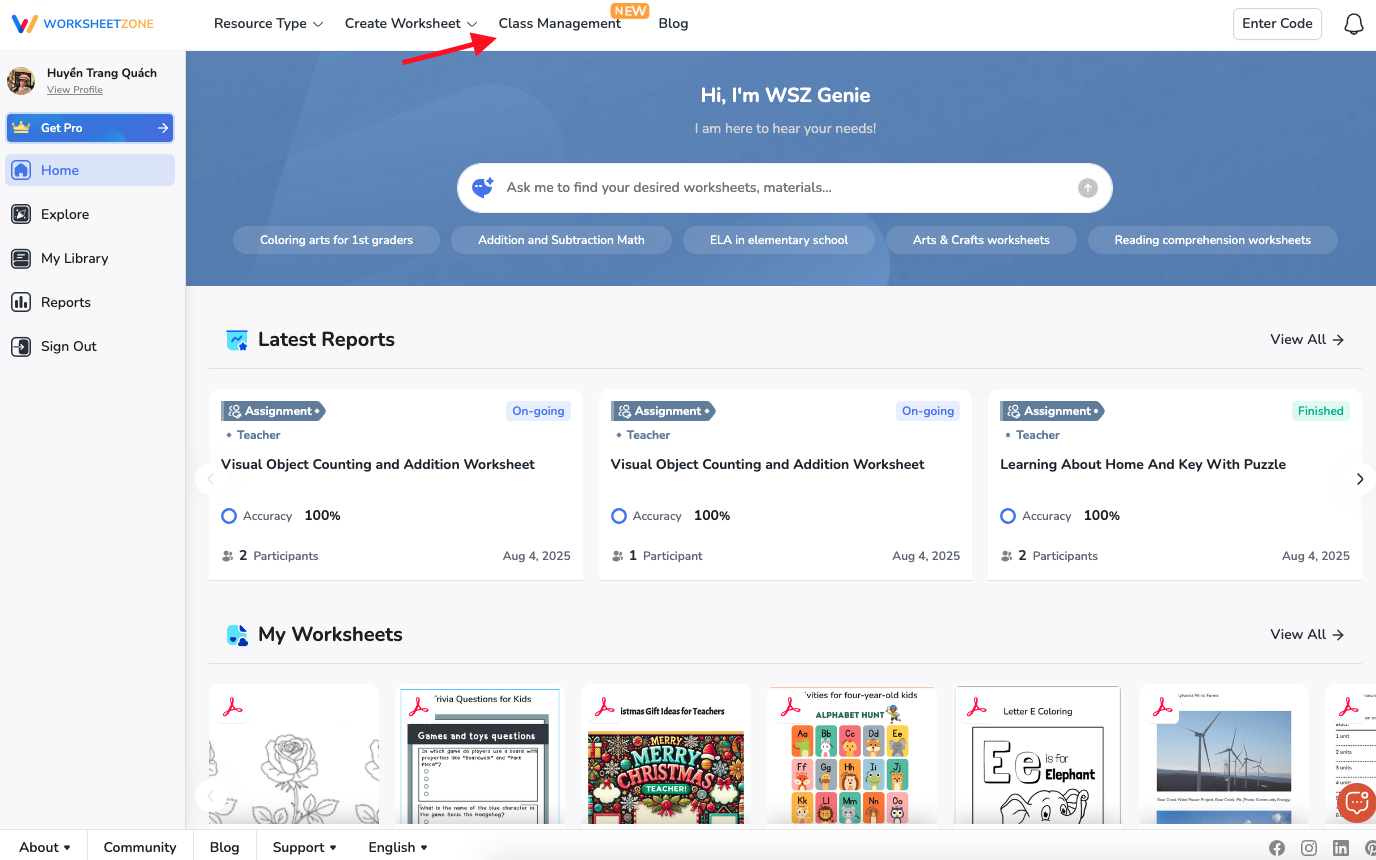
- Click on your profile menu in the upper-right corner.
- Select “Class Management” to open the WSZ Classie dashboard. This is your central hub for all classroom activities.
Now, let’s break down each part of the dashboard interface so you can make the most of it.
Left Sidebar: Quick Access Navigation
The sidebar gives you access to all your classroom tools:

1. Teaching Class
This section displays all classes you’ve created as a teacher. Click on any class card to open a dedicated class view, where you can:
- Manage or create assignments
- View student submissions
- Check class analytics
- Edit class settings

To create a new class, scroll to the bottom of this section and click on “Create Class.” You’ll be prompted to:
- Enter a class name
- Choose a grade level
- Select a topic

Once done, your new class will appear in the Teaching Class list.
2. My Class
This section shows all classes you’ve joined as a student. It provides a centralized space where students can track their enrolled classes, assignments, and progress.
Students can join a new classroom using a code shared by their teacher.
- Click “Join Class” from the sidebar.
- Enter the class code provided by your teacher.
- Instantly gain access to all materials and assignments within that class.

Top Right Corner: Create/Join Quick Action Button
A universal quick-action button designed for both teachers and students:
- Teachers: Create a new class in seconds.
- Students: Join a class instantly using a class code.

It’s visible on every dashboard page for fast access.
Center Dashboard: Real-Time Insights
Here you’ll find three smart boxes offering real-time, data-driven classroom insights:

1. Performance Analysis
Provides an overview of top-performing classes based on:
- Engagement
- Assignment completion
- Score averages
Click “View detailed report” to:
- See student-by-student results
- Track assignment performance
- Monitor overall progress

2. Suggestions for Improvement
- Based on assignment results and engagement, WSZ Classie offers personalized tips.
- Teachers can use these to plan reviews or differentiate instruction more effectively.
3. Warning
This section flags areas of concern, such as:
- Low participation
- Below-average test scores
- Incomplete assignments
Clicking “View detailed report” opens a full analytics dashboard for that class, including:
- Participation history
- Average completion time
- Score distributions
Bottom of Dashboard: Class Cards Section
Below the insight boxes, you’ll find detailed class cards separated into two rows:
1. Teaching Class Cards
- Teachers can quickly access class settings, student lists, assignments, and tracking dashboards.
- Ideal for managing everything from one view.

2. My Class Cards
- Each card shows assignment status, upcoming deadlines, and performance summaries.
- Click on a class card to go straight to the assignments or review your learning progress.

Get Started with WSZ Classie Today!
The WSZ Classie Dashboard puts everything you need right at your fingertips—whether you’re a teacher leading multiple classes or a student managing assignments across subjects. With smart tools, real-time insights, and a clean, user-friendly layout, you’re fully equipped to stay organized, focused, and in control.
Ready to take control of your class experience? Open your WSZ Classie dashboard, and take your next step toward a more efficient classroom experience.