







Submitting your homework is just the beginning—the real progress comes from reviewing your results. With Worksheetzone’s Assign feature, you don’t just see a grade; you unlock detailed feedback, answer keys, and your ranking. Every submission becomes a chance to spot mistakes, strengthen weak areas, and build confidence for the next challenge. In this guide, we’ll walk you through step-by-step instructions on how to review your homework results and share smart strategies to make the most of your review time.
Step-by-Step Guide to Reviewing Homework Results
After submitting your homework, Worksheetzone gives you an instant result. Use this step-by-step guide to explore your results, understand mistakes, and plan smarter practice.
Step 1: Open Your Submitted Assignment
Once you’ve finished and clicked Submit, Worksheetzone immediately takes you to the results screen. This page is your first checkpoint—it shows you how you did right away.
But even if you close the page or log out, don’t worry. You can always come back later:
- Log back into your class.
- Click on the Reports section in the sidebar.
- Choose the assignment you want to review from the list.
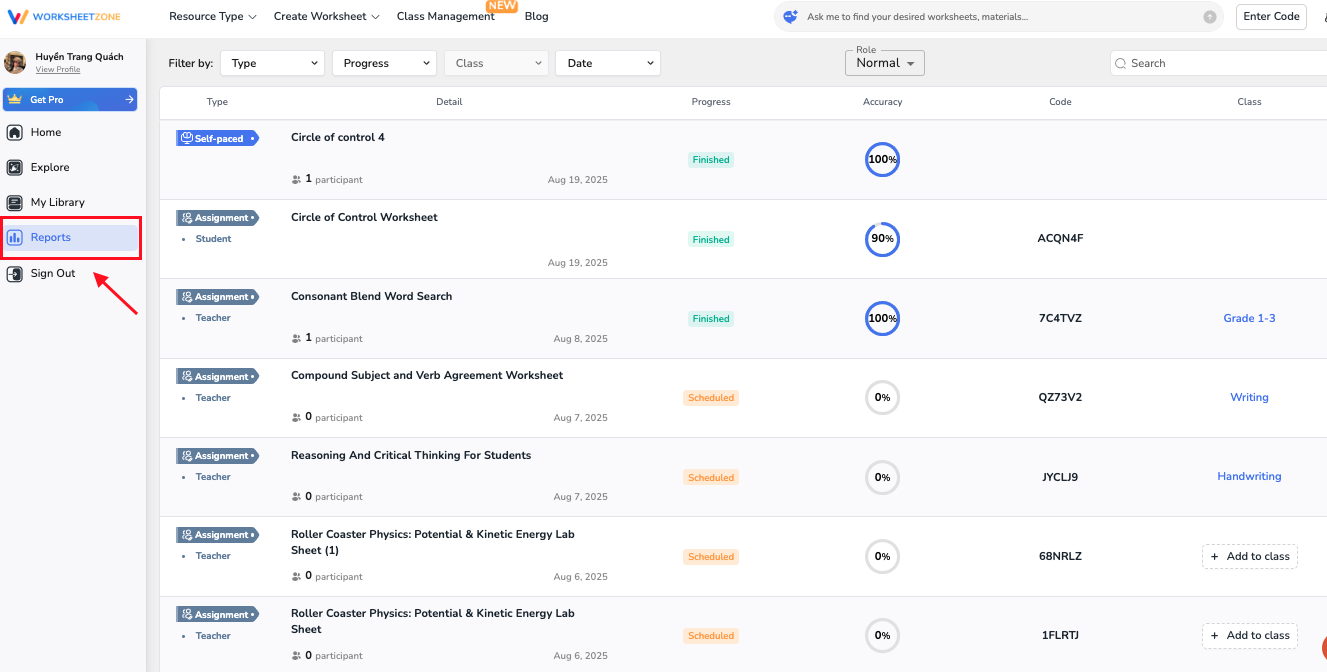
This way, you can revisit your past homework anytime for extra practice or preparation before a test.
Step 2: Check Your Score Summary
At the very top of your results page, you’ll see a quick overview of:
- A score wheel shows the number of correct vs. incorrect answers at a glance.
- A congratulations message confirms that your assignment is complete and has been sent to your teacher.
- On the right, the Leaderboard (if enabled) displays your ranking, name, and score compared to classmates.

This summary provides instant feedback—not only your score, but also how your effort compares. It’s a great starting point before diving into each question for deeper review.
Step 3: Review Question-by-Question Feedback
After checking your overall score, scroll down to see a detailed breakdown of every question you answered. Here’s what you’ll notice:
- On the left panel, the Question List shows all questions in order (1–10 in this example). You can click any number to jump directly to that question.
- In the main area, each question is displayed with:
- Your selected answer is highlighted in gray.
- A green checkmark for correct answers.
- A red mark for incorrect ones.
- Supportive feedback, such as “You’ve got this!” or “You’re doing great!” to keep you motivated.
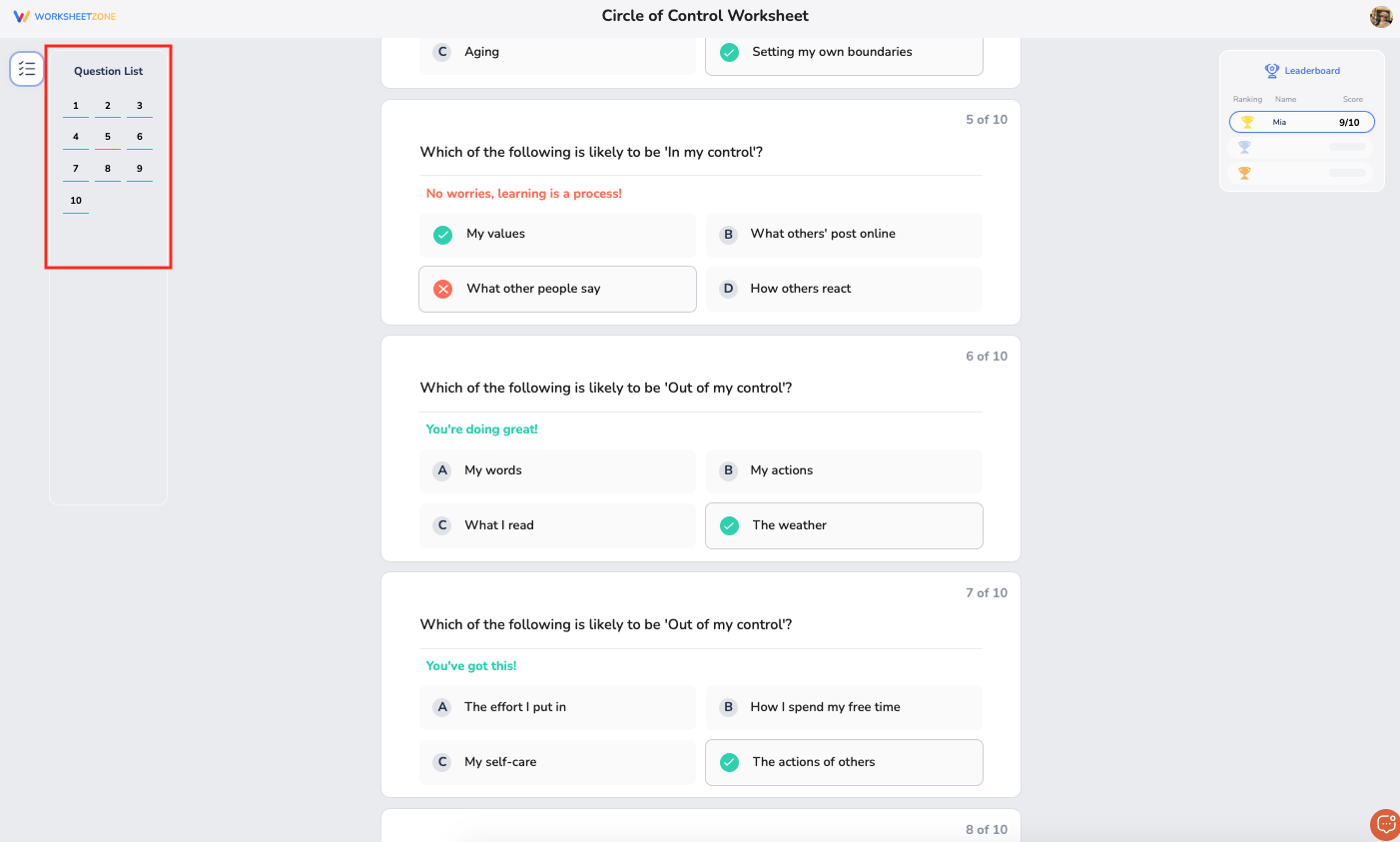
By carefully reviewing each question—especially the ones you missed—you’ll understand not just what the right answer is, but why it’s right.
Step 4: Reveal the Answer Key
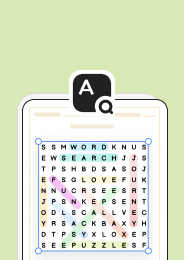
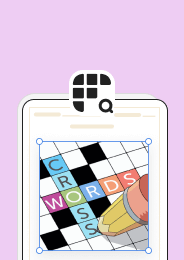
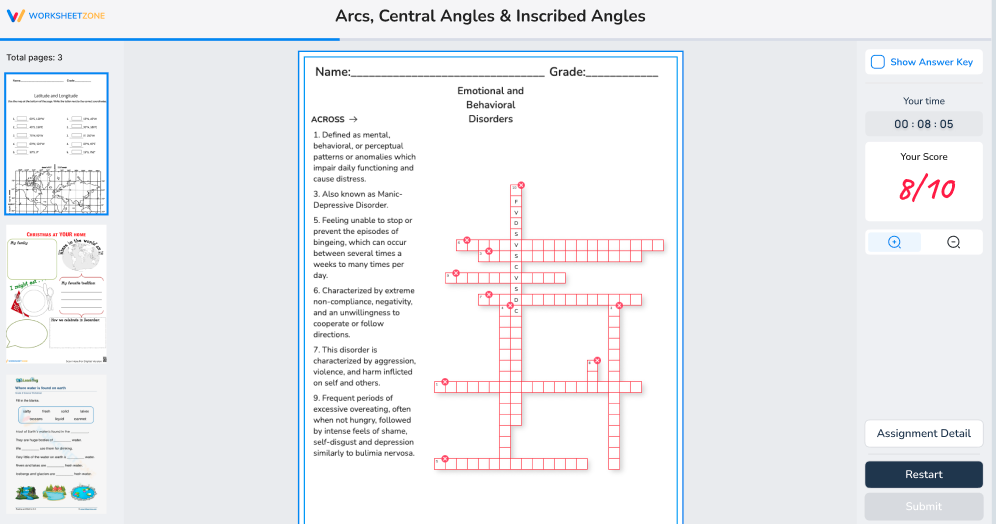
For interactive, non-quiz worksheets like word searches, crosswords, drag-and-drop activities, or fill-in-the-blank exercises, Worksheetzone gives you the option to check the answer key after submission.
- On the right-hand side of the screen, you’ll see a button labeled Show Answer Key.
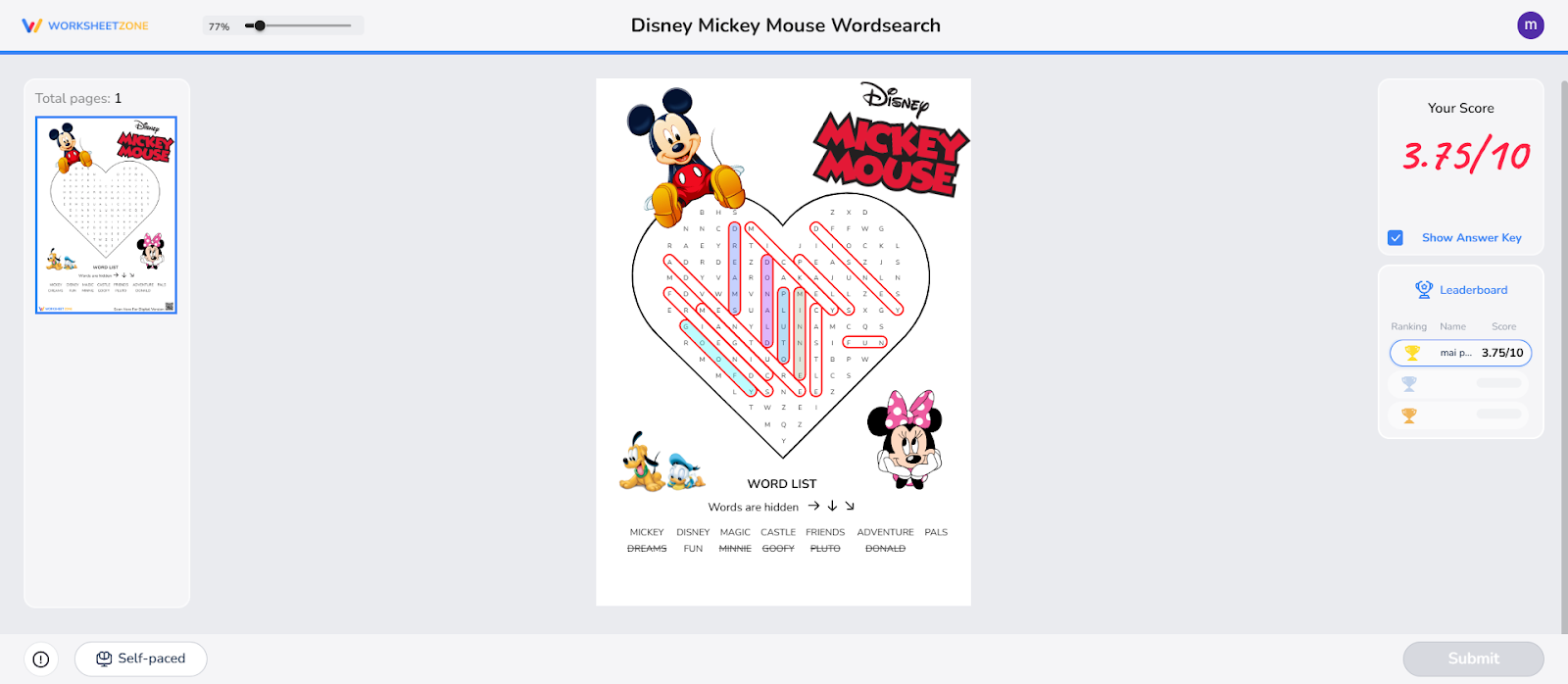
- Clicking this reveals the full solution—every correct word, letter, or placement is highlighted so you can compare it with your work.
This feature helps you quickly spot any missed words or errors, making it easier to practice and master the skill before your next attempt.
Step 5: Explore the Leaderboard (Optional)
If your teacher has chosen to enable leaderboards, you’ll see how your performance stacks up against. By clicking “View Details,” you can view rankings, scores, and even completion times.
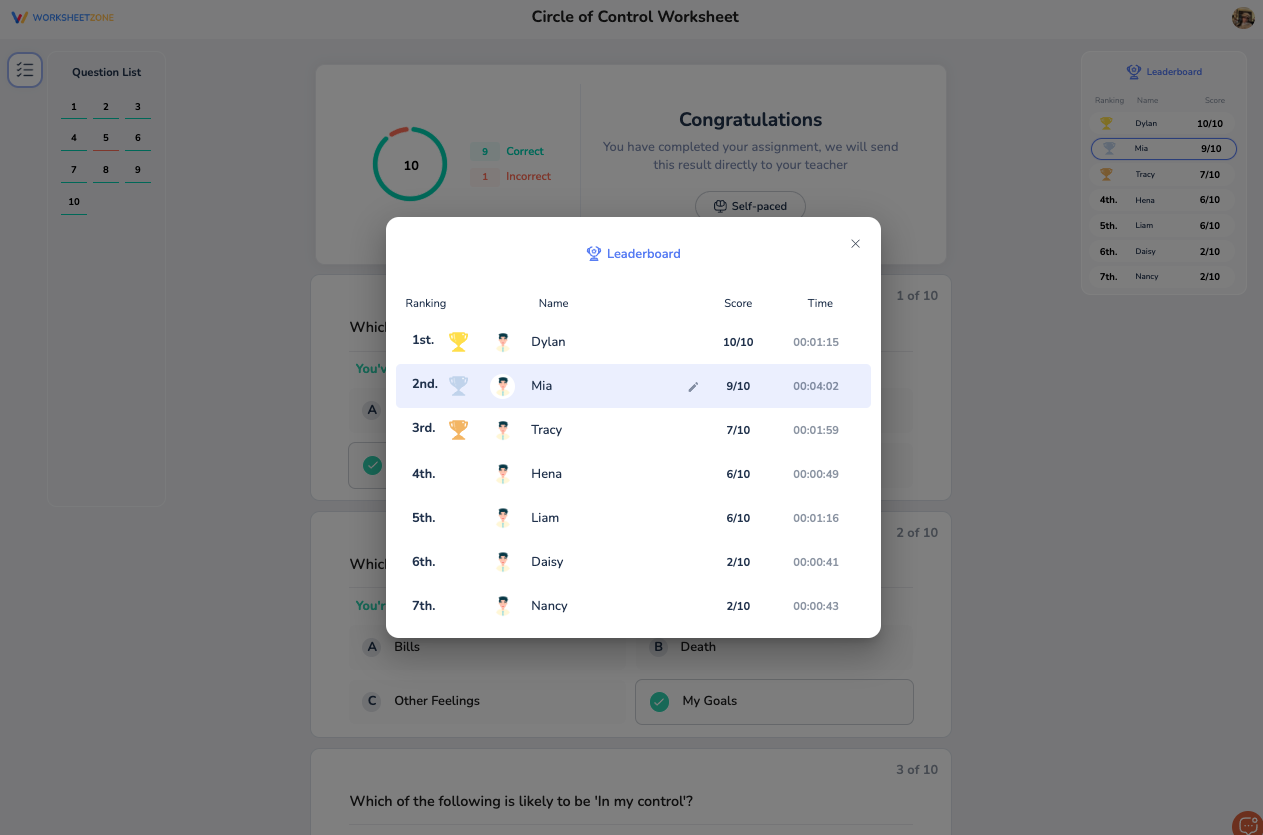
The leaderboard is designed as a motivator—not a competition. Instead of focusing only on rank, try asking:
- Am I improving compared to my last attempt?
- How much faster or more accurate can I be next time?
Step 6: Dive into the Reports Tab
Head over to the Reports tab on the left menu to see a full overview of your homework. Here, each assignment is neatly listed with key details:
- Worksheet Name & Type – so you know exactly which task it was.
- Progress Status – shows if it’s Pending, Scheduled, On-going, or Finished.
- Accuracy Score – instantly tells you how well you did.
- Date & Class Code – helps you track when and where the assignment belongs.
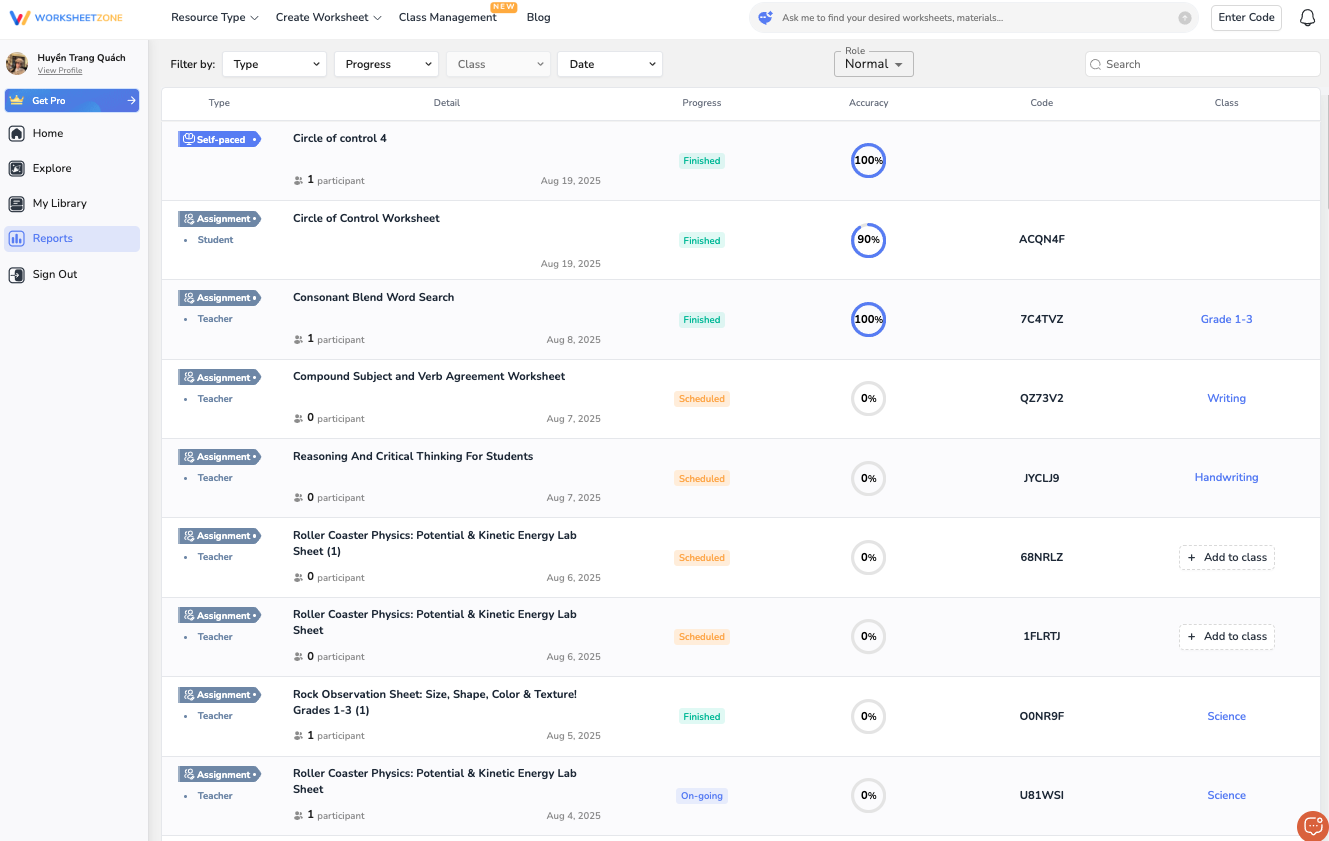
Think of this tab as your learning dashboard—it’s where you can celebrate perfect scores, check which worksheets still need work, and keep yourself on track with upcoming tasks.
Step 7: Plan Your Next Step
After reviewing, it’s time to decide what comes next:
- If your teacher has allowed multiple attempts, click Restart to take the assignment again with fresh insight.
- If retries aren’t available, focus on extra practice worksheets in the same topic area.
- Still confused on certain questions? Bring them up in class or ask your teacher for examples.
Remember—review isn’t about dwelling on mistakes. It’s about using the information Worksheetzone gives you to build confidence and perform better next time.
Tips for Getting the Most Out of Homework Review
Reviewing your homework isn’t just about checking your score—it’s about learning from each attempt and getting better every time. Here are some simple tips to help you get the most out of your homework review.
- Check Your Score and Accuracy– Start by looking at your overall score to see how well you did.
- Review Incorrect Answers – Focus on the questions you got wrong to understand your mistakes.
- Use the Answer Key as a Learning Tool – Compare your answers with the correct ones to learn the right approach.
- Look for Patterns – Notice if certain topics or question types are harder for you, so you’ll know exactly what to focus on for improvement.
- Track Your Progress Over Time in Reports – Use the Reports tab to monitor improvements over time.
- Ask for Help When Needed – Share tricky questions with your teacher or classmates to get different perspectives.
- Celebrate Small Wins – Improvement isn’t only about fixing mistakes. Celebrate the questions you got right and the progress you’ve made. Even small gains show that your effort is paying off.
- Set a Clear Goal for Next Time – Use what you learned to aim for a higher score on your next assignment.
Summary
Reviewing your homework on Worksheetzone isn’t just about checking scores—it’s about turning feedback into growth. By using the Reports tab, looking closely at your answers, and following smart review tips, you’ll turn every assignment into a learning boost. Stay curious, keep practicing, and remember: each review takes you one step closer to mastering your skills!