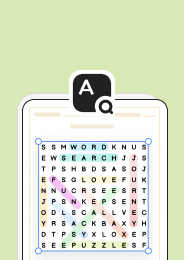








Looking for a fast, flexible way to create vocabulary-building activities? The Word Search Maker from Worksheetzone lets you design custom puzzles in minutes—perfect for classrooms or home learning. In this tutorial, we’ll walk you through each step: from creating your word list (including using AI!), to customizing layouts, and publishing your worksheet. Whether you’re a teacher or parent, you’ll also discover other popular word search tools and how they compare. Let’s get started with building engaging, personalized puzzles your students will love.
Recommendation: If you’d rather skip the design process, check out our collection of ready-to-use word search worksheets covering popular themes for instant classroom fun.
What Is a Word Search Maker?
A word search maker is a digital tool that allows you to easily create word search puzzles by entering a custom list of words. These tools automatically generate a letter grid where the words are hidden in various directions—horizontally, vertically, or diagonally.
Word search makers are widely used by teachers, parents, and students to support vocabulary building, spelling practice, and reading engagement. With just a few clicks, you can produce a printable or digital puzzle tailored to your lesson topic, theme, or learning goal—no design skills needed.

Step-by-Step Guide: How to Create Word Searches on Worksheetzone
Creating a custom word search puzzle on Worksheetzone is quick and beginner-friendly. Whether you’re working on a classroom lesson or a fun family activity, follow these steps to generate your own word search in just minutes.
Step 1: Go to Worksheetzone’s Word Search Generator
There are two easy ways to access the Word Search Generator on Worksheetzone.
Option 1: Visit the tool directly
- Navigate to the Word Search Maker page.
- Or click the “Start Now” button on the Word Search Maker landing page.

Option 2: Access from Worksheetzone’s homepage
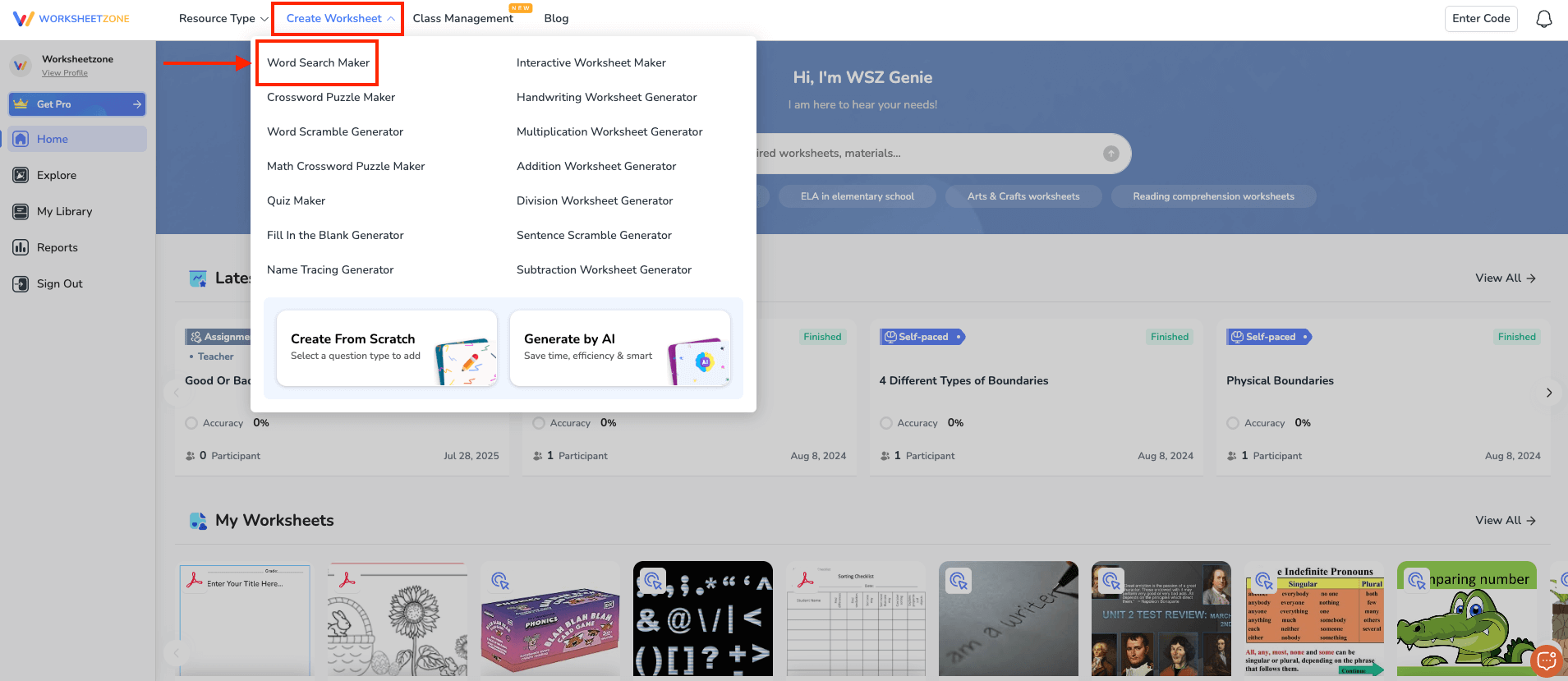
- On Worksheetzone’s homepage, hover over the “Create Worksheet” menu in the top navigation bar.
- Click on “Word Search Maker” from the dropdown list.
Step 2: Choose a Topic or Enter Your Own Words
Once you’ve accessed the Word Search Maker, you’ll be prompted to start building your puzzle by entering your word list. Worksheetzone offers three flexible options to suit different needs:
Option 1: Use Preloaded Vocabulary Sets
For a quick start, choose from pre-designed word banks covering popular educational themes – like animals, weather, holidays, or classroom vocabulary. These sets are great when you need ready-to-go content aligned with common topics.

Option 2: Enter Your Own Custom Words
Want to tailor the puzzle to your current lesson? Simply type or paste your own list of words into the input box. The tool supports a wide range of word lengths and up to 25 terms, making it ideal for spelling lists, science terms, or foreign language vocabulary.

Option 3: Generate a Word List with AI
Short on ideas? Let Worksheetzone’s AI assistant help! Just describe your theme or subject (e.g., “plants”, “solar system”, “verbs for ESL beginners”. And the AI will instantly generate a relevant and age-appropriate list of words for your puzzle. You can then review, edit, or add to the list as needed.

Step 3: Customize the Grid Shape, Directions, and Size
Once your word list is ready, Worksheetzone’s Word Search Maker allows you to customize the puzzle layout to match your students’ skill levels and classroom goals. This step gives you full control over how challenging or accessible your puzzle will be.
Customize the Grid Shape
Choose the shape of your puzzle grid from the available options – Square is the most common, but other shapes may be added as Worksheetzone expands its features. Shape customization can make puzzles visually unique and themed.

Select Word Directions
Decide which directions your hidden words can appear in:
- Horizontal (left to right)
- Vertical (top to bottom)
- Diagonal
- Reversed versions of the above for extra challenge
By default, the tool includes forward directions to keep it beginner-friendly, but you can toggle options to increase difficulty for older students.

Set the Grid Size
Choose from Small, Medium, or Large word search sizes. Larger grids are ideal for longer word lists or advanced solvers, while smaller ones are great for younger learners or quick classroom activities.
Display Options for Extra Support
You can enable or disable the following display elements:
- Answer Key: Great for teachers who want a reference version
- Word Directions: Helps younger students understand how to look for hidden words
- Word List: You can choose to hide the word list for an added challenge
These customizable features make Worksheetzone a flexible tool that supports differentiated instruction across multiple grade levels.

Looking for even more options? Try the full Worksheet Maker to build other activity types, from quizzes to handwriting sheets, all in one plac
Step 4: Preview and Edit Your Word Search
After customizing your word list and puzzle settings, it’s time to give your word search a final polish before downloading or assigning it. Worksheetzone’s editor lets you preview the full puzzle layout in real time and make creative adjustments to ensure it’s both accurate and visually appealing.
Add a Title to Your Worksheet
At the top of the puzzle, you’ll see editable fields for Name, Grade, and Title.
- Use the title field to describe your activity (e.g., Weather Vocabulary Word Search)
- This helps organize printed worksheets and makes them easier for students to identify.
Insert Elements and Decorative Features
From the left-side toolbar, you can add extra components to your worksheet:
- Text elements for instructions or learning objectives
- Clipart and icons to match the worksheet theme (e.g., clouds for a weather search)
- Stamps or arrows to give it a fun, interactive feel
Choose a Background
Click the Background tab to apply a light design or color to your puzzle page.
- Choose from soft colors or patterns that match the theme (seasonal, subject-based, etc.)
- Keep it subtle to ensure the grid and word list remain easy to read
Final Layout Check
- Make sure all your words appear in the grid correctly
- Look for overlapping letters or spacing issues in longer words
- Confirm that titles and instructions are aligned for printing

Once everything looks good, you’re ready to move on to saving or assigning your word search!
Step 5: Publish, Download, or Assign Your Word Search
Once your word search is ready and you’re happy with the layout, the final step is to publish, download, or assign it through Worksheetzone’s intuitive interface.
Fill Out Worksheet Info Before Publishing
Click the button “Save” in the top right, and complete information for your worksheet by adding a title, description, grade, etc. These details help you manage your worksheet in your library and make it easier to reuse or share later.
Publish the Worksheet
Click the “Publish” button to save your worksheet to your library. Once published, you can:
- Assign it to a class
- Turn it into a Self-paced activity
- Launch it in the Live game mode
Assign to a Class (Optional)
If you’re using Worksheetzone’s Classroom feature, you can assign the worksheet directly to your students by clicking the “Assign class” button before or publishing.
Download or Share
Use the icons at the bottom of the pop-up to:
- Download the worksheet as a PDF
- Copy the shareable link
- Add to your own resource to use later
Whether you prefer digital assignments or printable activities, Worksheetzone gives you multiple ways to deliver your custom word search to students with ease.

Other Word Search Generator Tools You Can Try
While Worksheetzone offers a powerful and classroom-ready word search generator, there are several other tools worth exploring – each with its own features and advantages. Below are three popular options educators and parents often turn to when creating word search puzzles.
Education.com Word Search Generator
If you’re already using education.com for worksheets or lesson planning, their built-in word search generator is a natural extension of their educational suite. Designed for teachers, parents, and students, this tool makes it easy to generate custom puzzles with minimal effort.

Key Benefits:
- Supports personalized word lists, puzzle sizes, and themed templates
- Generates high-quality, printable PDFs with answer keys
- Comes with access to a wide range of educational resources beyond puzzles
Things to Consider:
- Some features and downloads require a paid subscription
- Account registration is needed for saving and printing
- Customization is somewhat limited compared to specialized puzzle platforms
Discovery Education Puzzlemaker
A longtime favorite in classrooms, PuzzleMaker by Discovery Education is a straightforward, no-login-required tool that’s been helping educators generate quick puzzles for years. It’s a reliable option for simple, text-based word searches.

Key Benefits:
- Offers control over grid size and word direction
- Provides puzzles in HTML or image formats
Things to Consider:
- Outdated interface and visuals
- Doesn’t allow users to save or revisit previous puzzles
- Lacks visual customization or printable themes
Word Search Labs
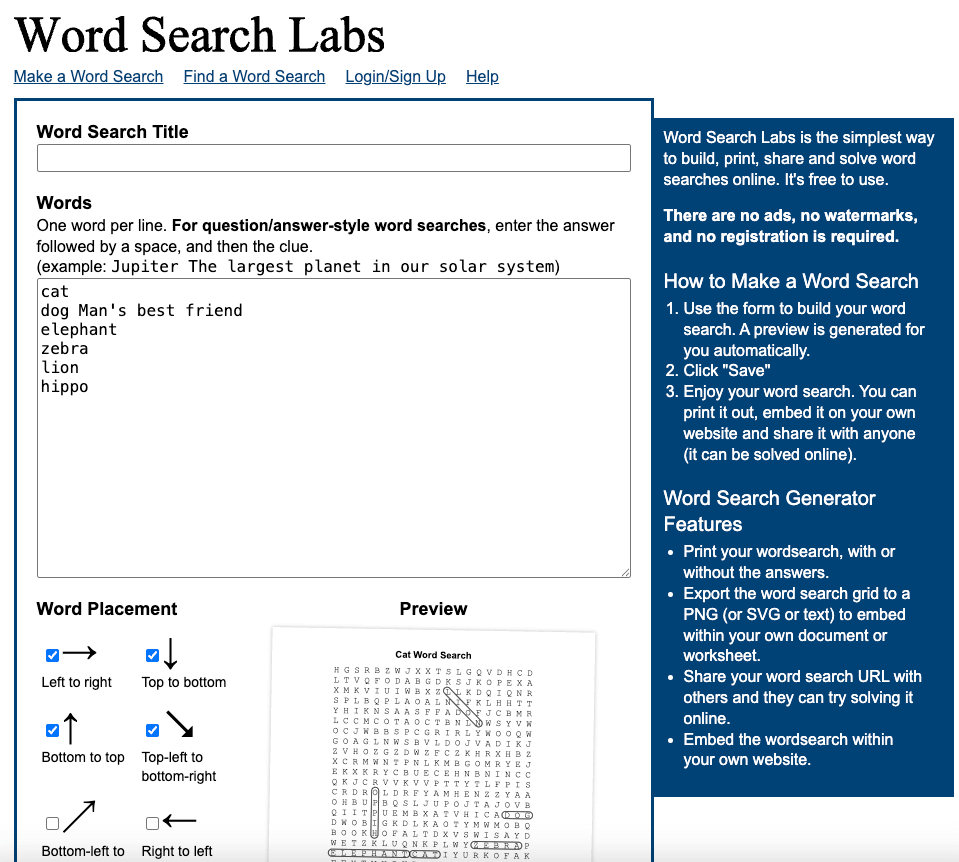
For those who value speed and simplicity, Word Search Labs is a completely free, no-registration tool that lets you build and share puzzles in minutes. It’s especially useful for educators and bloggers looking to embed puzzles online.
Key Benefits:
- Free with no sign-up required
- Export as PNG or SVG for digital or print use
- Simple interface for quick puzzle generation
Things to Consider:
- Basic customization features only
- No built-in answer key (though you can view it online)
- Doesn’t offer integration with lesson plans or other educational content
These tools offer great alternatives depending on your needs. Whether you’re looking for speed, simplicity, or full lesson integration, there’s a generator out there to match your teaching style.
And if you’d like to branch out, don’t miss our step-by-step guide on how to create a crossword puzzle on Worksheetzone, another fun way to challenge students.
Final Thoughts
Creating engaging, educational word search puzzles has never been easier – especially with the powerful, flexible tools available on Worksheetzone. This step-by-step guide has walked you through everything from accessing the Word Search Maker to customizing your word list, adjusting layout settings, and publishing your worksheet for print or digital use.
Whether you’re a teacher planning classroom activities or a parent supporting learning at home, Worksheetzone’s Word Search Maker gives you everything you need in one place—customization, classroom integration, and a clean, intuitive interface.